MM logo white 1
MM logo red
Image description is not available

What is Remote Play and how do you use it while gaming?

Julia13 JANUARY 2026
A man and a girl sit on a sofa, each holding a game controller and smiling, with a window in the background.

Remote Play is a smart gaming feature that sends the image from your games console straight to your phone or tablet. Thanks to Remote Play you can play your favourite games anytime and anywhere. During a long train journey, in the dentist’s waiting room or when someone else is using your television. In this article you can read how to use Remote Play on your games console.

On which consoles can you use Remote Play?

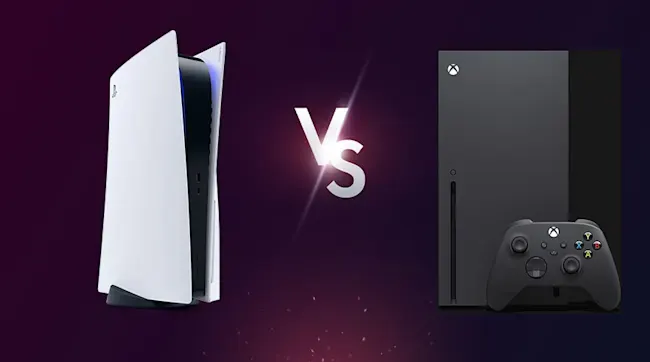
The image shows a white PlayStation 5 on the left, a gray Xbox Series X with a controller on the right, and a white "Vs" in the middle.

Remote Play is available for PlayStation and Xbox. Users stream their favourite games to their tablet or smartphone. This way you can play on the go on your Android or iOS device. It’s also possible to use Remote Play on a Windows laptop or computer and via a Mac or MacBook. As long as the device on which you want to game remotely has a good internet connection, it’s suitable for Remote Play.

On which consoles can you use Remote Play?
Using PlayStation Remote Play on a smartphone or tablet

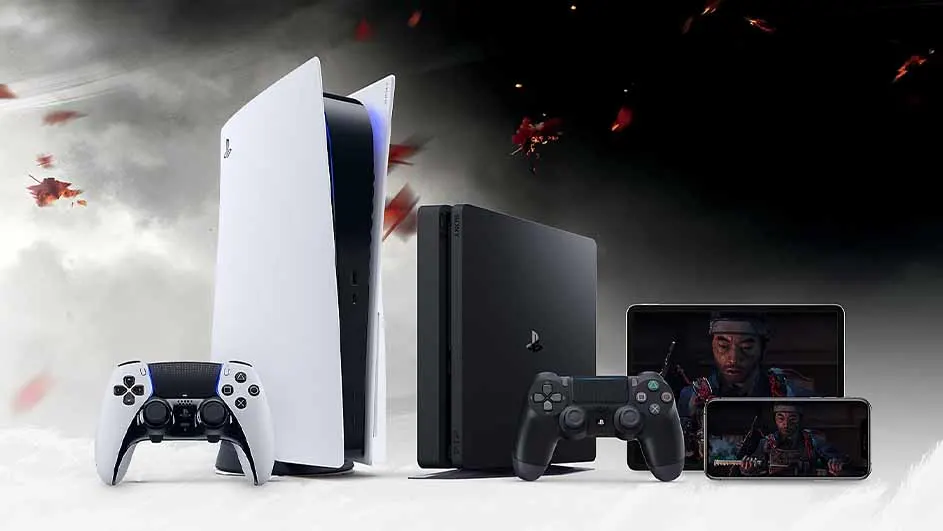
Image shows a PS5, a PS4, a white PS5 controller, a black PS4 controller, a tablet and a smartphone.

Do you have a PlayStation 4 or PlayStation 5 and want to use Remote Play on your smartphone or tablet? Then follow these steps to install Remote Play:

  • Step 1: install the PS Remote Play app on your phone or tablet. It’s available in the App Store and on Google Play.
  • Step 2: switch on Remote Play on your PlayStation. To do this, go to ‘Settings’ -> ‘System’ -> ‘Remote Play’. Here you enable Remote Play.
  • Step 3: open the PS Remote Play app on your device and sign in to the PlayStation Network. Log in with the account you also use on your console.
  • Step 4: the app automatically searches for your console and then connects. Remote Play is now installed and ready to use.

Setting up PS Remote Play on a computer or laptop

To use PS Remote Play on a computer or laptop, follow these steps:

  • Step 1: go to the Remote Play website: https://remoteplay.dl.playstation.net/remoteplay/lang/en/index.html.
  • Step 2: click on ‘Download’ and select ‘Windows PC’ or ‘Mac’.
  • Step 3: follow the instructions in the installation file to download the app.
  • Step 4: enable Remote Play on your console via ‘Settings’ -> ‘System’ -> ‘Remote Play’.
  • Step 5: open the app on your computer or laptop and sign in to the PlayStation Network. Use the same account as on your console. The app will search for your PlayStation and connect automatically.

Even easier remote play with the PlayStation Portal

A sleek handheld PlayStation screen floats in a dark space, glowing with blue light and a circular logo that suggests power and speed.

To make playing on PlayStation even more fun and easier, you can use the PlayStation Portal. This is Sony’s handheld that you connect to your PlayStation 5, allowing you to play your favourite games even more easily via remote play. Only VR games don’t work on Portal. You play your favourite games on this handheld device on an 8‑inch HD screen.

Read more about the PlayStation Portal

Using Xbox Remote Play on your smartphone or tablet

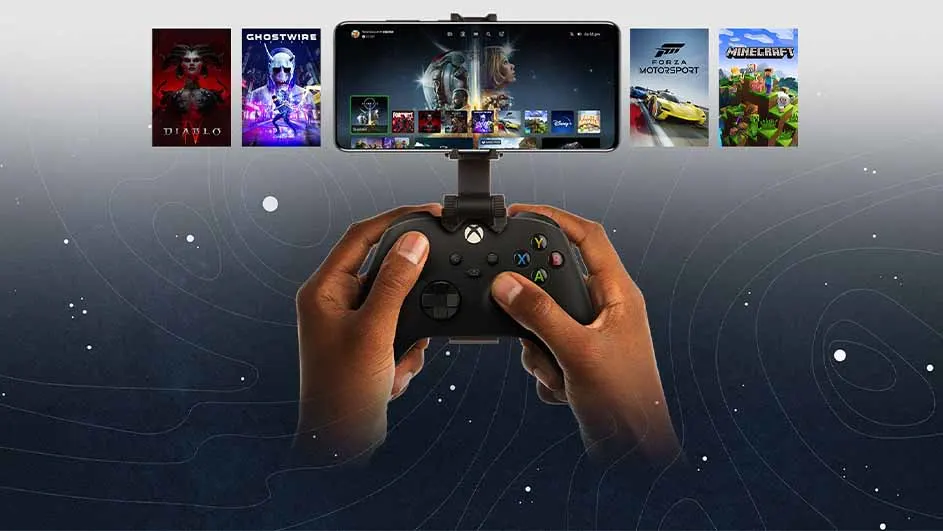
Hands hold a black controller attached to a phone displaying game options, with game covers floating above against a dark background.

To use the Remote Play options on your Xbox Series S, Xbox Series X or Xbox One, do the following:

  • Step 1: download the Xbox app in the App Store or Google Play Store.
  • Step 2: enable ‘Remote features’ on your Xbox console. To do this, press the Xbox button on your controller. Then go to ‘Profile & system’ -> ‘Settings’ -> ‘Devices & connections’ -> ‘Remote features’.
  • Step 3: put your Xbox in sleep mode. You can tick this under the ‘Power options’ setting.
  • Step 4: open the Xbox app on your mobile or tablet. Go to ‘My Library’ and choose ‘Consoles’.
  • Step 5: select your Xbox console and choose the ‘Remote play on this device’ option.

Setting up Xbox Remote Play on your Windows PC or laptop

The Remote Play feature is only available for Windows computers and laptops. It’s not possible to download the Xbox app on a MacBook. This is how you install Xbox Remote Play on a Windows laptop:

  • Step 1: make sure that ‘Remote features’ (‘Profile & system’ -> ‘Settings’ -> ‘Devices & connections’ -> ‘Remote features’) and ‘Sleep mode’ (under ‘Power options’) are enabled on your Xbox console.
  • Step 2: on your Windows device, go to the Microsoft Store and download the Xbox app.
  • Step 3: click on your profile picture and choose ‘View profile’.
  • Step 4: go to ‘Where I play’ and select ‘Add a console’.
  • Step 5: follow the on-screen instructions to link your Xbox and Windows device and use Xbox Remote Play.

Use the Asus ROG Ally to game remotely

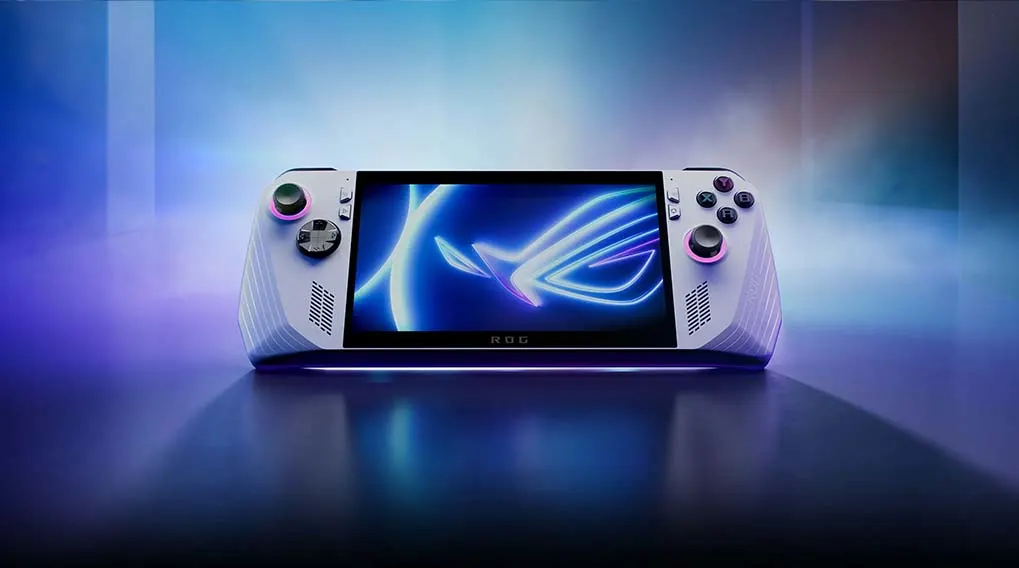
A handheld gaming console is displayed on a reflective surface with a blue and purple background. The screen shows a blue logo.

You can also easily play games for Xbox, PC and the Epic Game Store remotely with the Asus ROG Ally. On this handheld with a 7‑inch touchscreen and Full HD resolution you can play big PC or Xbox games wherever you’re. The ROG Ally runs on Windows 11.

Read more about the Asus ROG Ally

These articles might be intersting for you