MM logo white 1
MM logo red
Image description is not available

How to take a screenshot or screen record on a MacBook

Daan31 AUGUST 2025
Two people sit on a blue couch with laptops on a glass table. A mobile phone is near the woman. Windows are behind them.

A screenshot captures what’s on your screen in a single image, which is great for saving useful info or showing someone exactly what you’re seeing. On your MacBook, you can take full-screen screenshots, capture specific areas or windows, or even record your screen as a video. All of this is possible using keyboard shortcuts or the built-in screenshot app. Here's how it works.

What kind of screen recordings or screenshot do you want to take on MacBook?

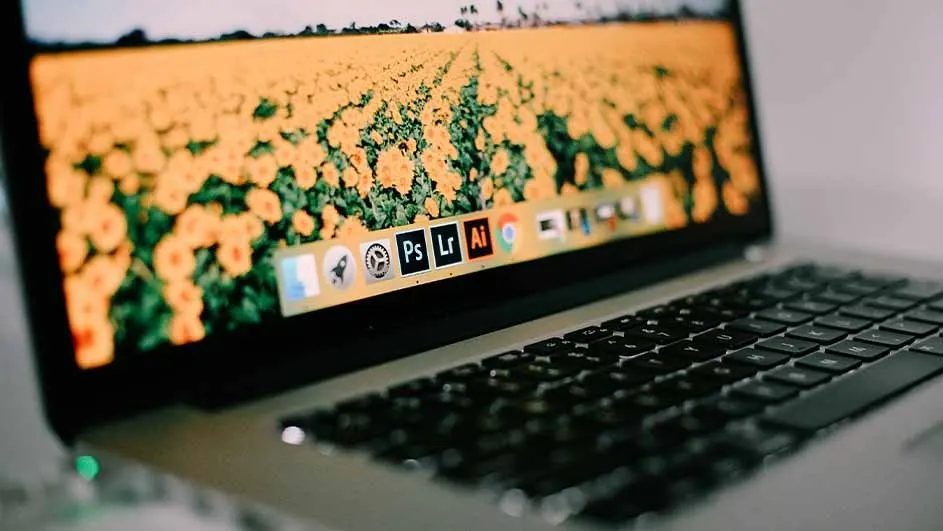
Laptop displaying a field of yellow flowers with green stems; keyboard visible in the foreground, and software icons are on the screen.

There are 3 main types of screenshots you can take with keyboard shortcuts: full screen, part of the screen, or a single window. You can also make a screen recording using the screenshot app, either of the full screen or a portion of it. Press Shift + Command (⌘) + 5 to open the screenshot app. Then choose whether to capture a still image or a recording. Below, we explain how to do each one.
Fullscreen screenshot

To capture everything currently visible on your screen, press Shift + Command (⌘) + 3. You’ll hear a camera sound, and the screenshot will appear as a PNG file on your desktop. From there, you then copy and paste it into a file. You can also use the screenshot app – choose the first icon on the left and click Capture.

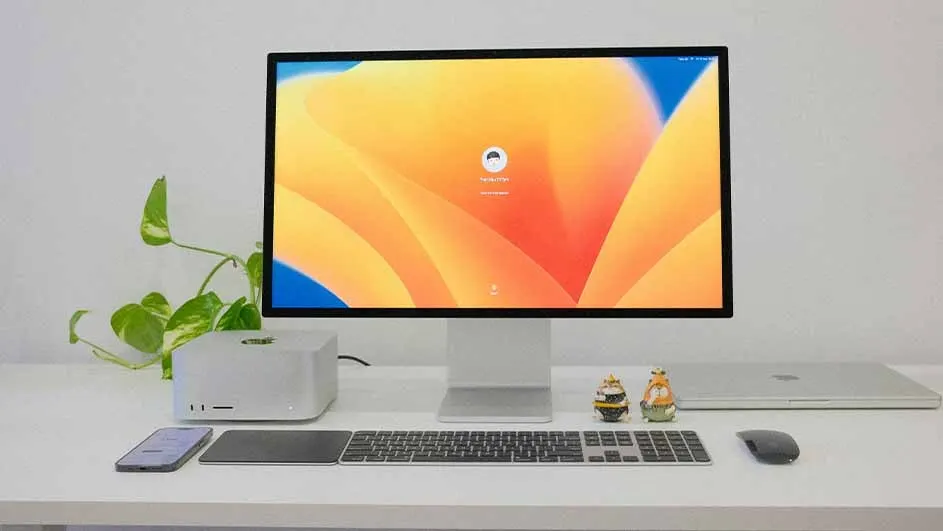
Desk view: Monitor with floral display, keyboard, mouse, phone, plant, and two small figurines.

Screenshot of a selected area

If you only want to capture a section of your screen, press Shift + Command (⌘) + 4. Your mouse pointer will turn into a crosshair. Click and drag to select the area, then release the mouse. The screenshot is saved to your desktop. In the screenshot app, use the third icon from the left to do the same.

Screenshot of a window

To capture a specific window, press Shift + Command (⌘) + 4, then hit the spacebar. The cursor changes to a camera. Hover over the window you want to capture and click it. In the screenshot app, this is the second icon from the left.

A person is typing on a gray laptop with a colorful screen. Two other laptops are in the background on a white surface.

Recording your screen

To record your screen as a video, use the screenshot app (Shift + Command + 5). Choose the second icon from the right, then click Record. Everything on your screen will be recorded. To stop, reopen the screenshot app and click Stop Screen Recording.

Recording a portion of your screen

To record only part of your screen, open the screenshot app and choose the rightmost icon. Drag to select the area you want, then click Record. Stop the recording by clicking Stop Screen Recording in the app.

Useful features in the screenshot app

A desk with a laptop, lenses, mug, and phone. There's framed art and a plant on the desk, with a world monuments poster behind.

The screenshot app offers handy extras. Click Options before capturing to add a timer, keep the mouse pointer visible, or choose where to save the file; not just the desktop. These features make capturing or recording much easier and more flexible.

How to uninstall apps on a Mac

Taking screenshots on other Mac devices

Our advice on how to take a screenshot on your Apple MacBook

Silver laptop, partially open, sits on a white surface, with a white mouse beside it. Orange and white curtains are in the background.

Whether you’re snapping a full screen, part of it, or recording a video, your MacBook makes it easy. Use Shift + Command + 3 or 4 for quick screenshots, or Shift + Command + 5 to open the screenshot app. It’s simple, fast, and built into every modern Mac.

What to do if your Mac won't start

These articles may also be interesting for you