
MM logo white 1
MM logo red
Image description is not available

MacBook not starting up? Here’s how to fix it

Daan3 FEBRUARY 2026
Two students collaborate at a wooden workbench, one sketching designs while the other types on a laptop beside small architectural models.

There are various reasons why your MacBook might not start up anymore. Fortunately, there are matching solutions. We explain them to you step by step.

What are the reasons a MacBook won’t start up?

Overhead view of a laptop in gebruik, met hands on keyboard and mouse, flanked by a notebook, coffee mug and small plant.

Is your MacBook no longer starting up? There can be several causes. The most common are:

  • The battery is empty or faulty.
  • The software is not up to date or the system has frozen.
  • If you haven’t used your MacBook for a long time, it may have gone into Deep Sleep Mode.
  • Errors occur in the SMC (System Management Controller).
  • There are hardware issues (the motherboard, screen or other internal components).
Handy tips for fixing a MacBook that won’t turn on

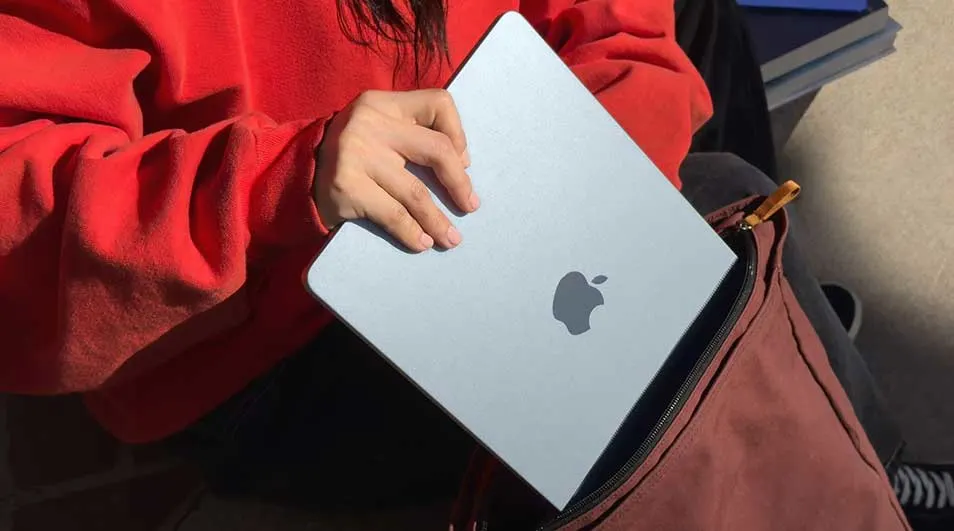
A person in a red jumper slides a slim silver laptop into a brown bag, preparing to study or work while travelling.

Fortunately, you can solve the above issues with a few simple steps:

  • Check the power supply.
  • Perform a hard reset.
  • Remove all connected accessories.
  • Reset the SMC (Intel Macs only).

Below you’ll find step-by-step instructions for each action.Bovenkant formulier

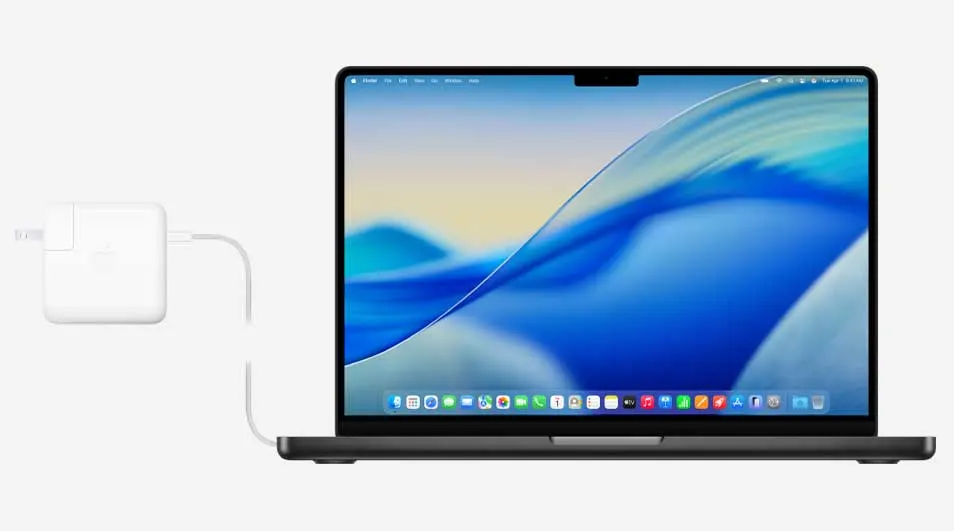
Close up of an open laptop displaying a bright blue wave wallpaper, connected to a white charger plugged in on the left side.

Check your MacBook is properly connected to the power

The first step if your MacBook won’t start up is to check whether the battery is empty. In most cases, a MacBook that won’t turn on is caused by a flat battery.

  1. Check that the power adapter is properly connected (both to your MacBook and to the wall socket). If you’re still using an older MagSafe connector, see whether the light is on. If it isn’t, there’s probably something wrong with the adapter or the socket. In that case, try a different charger or a different socket.
  2. Wait at least 30 minutes. If the battery is completely empty, charging can sometimes take longer than you’re used to.

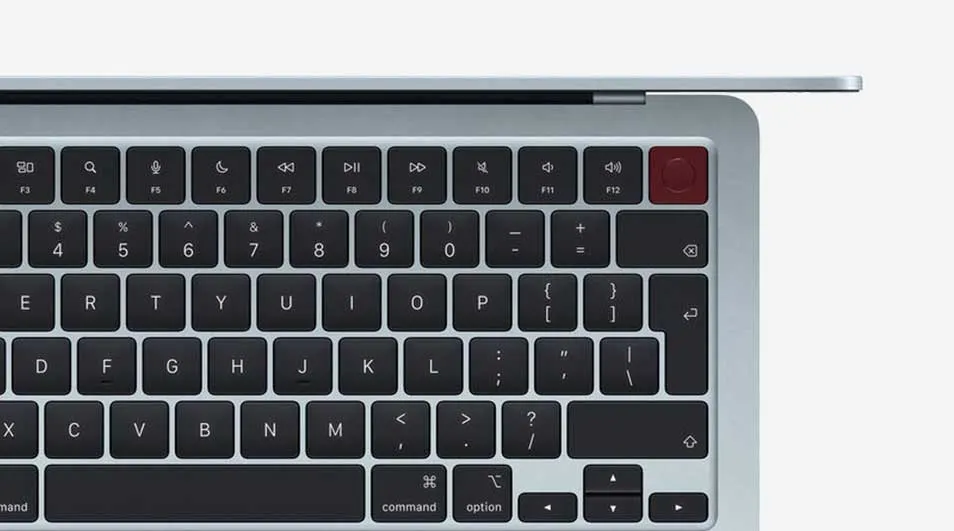
Detailed view of a keyboard with dark keys and a distinctive red Touch ID button in the top right, beneath a slim lid.

Hard reset using the power button

Charging your MacBook didn’t help? Then you can also perform a hard reset:

  1. Press and hold the power button for 10 seconds.
  2. Then press the power button again.
  3. Your MacBook should now restart.

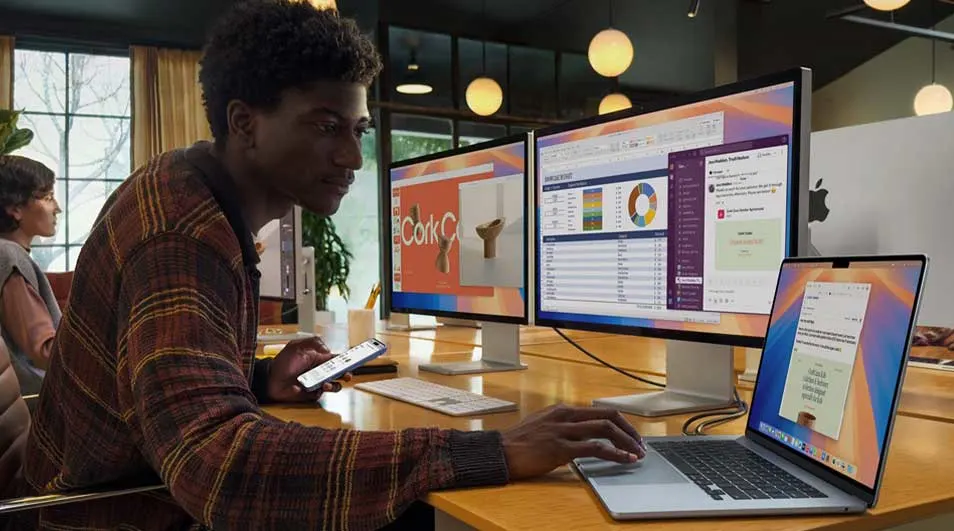
Young man in a modern office uses a laptop and dual monitors showing charts, chat and slides, while holding his smartphone nearby.

Remove connected accessories

Your MacBook may also be connected to faulty accessories:

  1. Disconnect all accessories from your MacBook, including printers, USB hubs, hard drives and phones.
  2. Perform the hard reset.

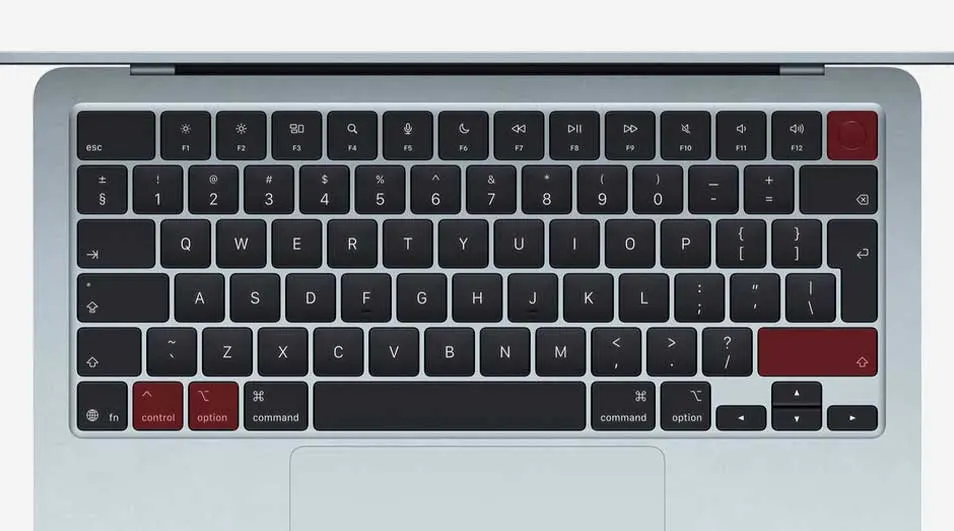
Top view of a full keyboard on a slim silver laptop, featuring black keys with several highlighted red modifier and arrow keys.

Reset the SMC (Intel Macs only)

If you have an older Intel Mac, there may be an issue with the SMC, or System Management Controller. The SMC manages many of your MacBook’s hardware functions, including charging and starting up. Resetting the SMC can help if your MacBook is no longer responding:

MacBook with Touch ID:

  1. Press and hold the right Shift key and the left Control and Option keys at the same time.
  2. Keep these keys pressed for about 7 seconds.
  3. Then also press and hold the power button (Touch ID).
  4. Keep all keys pressed for 10 seconds.
  5. Wait a few seconds and then try to start up your MacBook again.

MacBook without Touch ID:

  1. Press and hold the left Shift, Control and Option keys at the same time.
  2. Then also press and hold the power button.
  3. Keep all keys pressed for 10 seconds.
  4. Wait a few seconds and then try to start up your MacBook again.

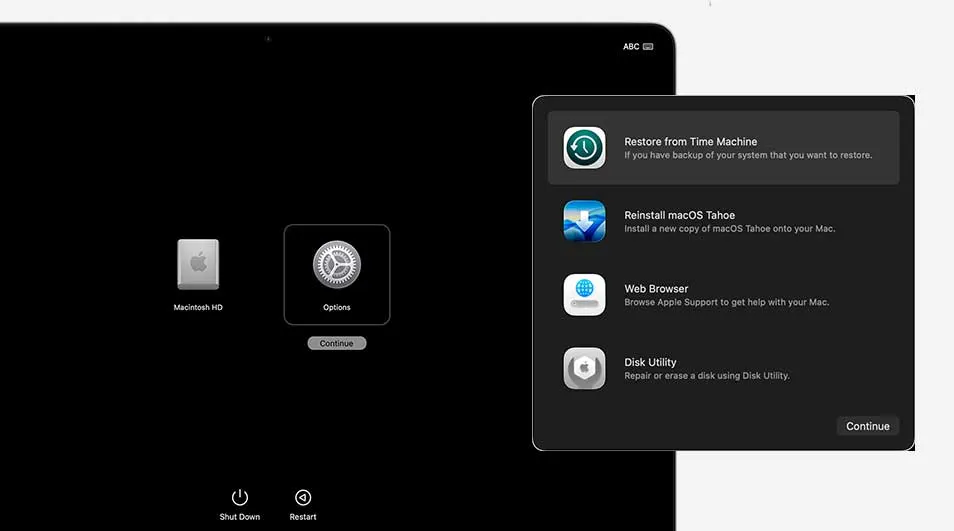
Laptop display shows the macOS recovery menu, offering Time Machine restore, system reinstall, web browser and Disk Utility on black.

Start macOS Recovery once your MacBook turns on again

Is your screen coming back on? Then start macOS Recovery. This is your MacBook’s built-in recovery system, which allows you to fix software issues, reinstall macOS, and erase or repair the disk.

This is how you activate macOS Recovery

Our advice on what to do if your MacBook won’t turn on

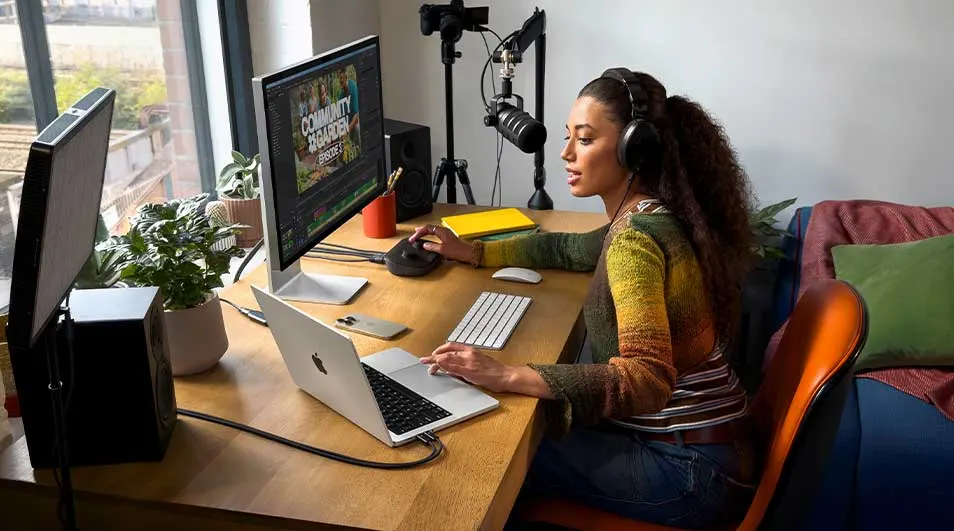
Woman wearing headphones creates content at a desk, using a laptop, large monitor, microphone and speakers in a bright studio corner.

Sometimes your MacBook suddenly won’t turn on. This may be due to a flat battery, hardware or software issues, Deep Sleep Mode or SMC errors. In many cases, you can quickly resolve this with a longer charging session, a hard reset, removing accessories and resetting the SMC. If none of these solutions work, it’s time to have your laptop repaired or replaced.

View similar articles