MM logo white 1
MM logo red
Image description is not available

How to pair your Apple Watch with your iPhone

Roel7 DECEMBER 2025
A phone displays "Apple Watch is Syncing" next to an Apple Watch with an Apple logo on its screen.

Have you bought a new Apple Watch? Then it’s high time to pair it with your iPhone. Fortunately, this is very straightforward. Follow the steps on this page and your Apple Watch will be set up in no time. If you’re pairing multiple iPhones with your old Apple Watch or if you’re unable to connect your Apple Watch, you’ll also find all the information you need here.

Pairing your Apple Watch with your iPhone in 7 steps

A person in a denim jacket checks their smartwatch while holding a smartphone, walking beside a low street wall.

You can pair your Apple Watch with your iPhone in 7 steps:

  1. Check your iOS version and switch on Bluetooth and Wi‑Fi.
  2. Make sure your Apple Watch and iPhone are sufficiently charged.
  3. Keep your iPhone close to your Apple Watch.
  4. Connect your Apple Watch to your iPhone.
  5. Set up your Apple Watch.
  6. Install the apps on your Apple Watch.
  7. (Optional) Link your mobile network to your Apple smartwatch.

Read all about the Apple Watch Series 11
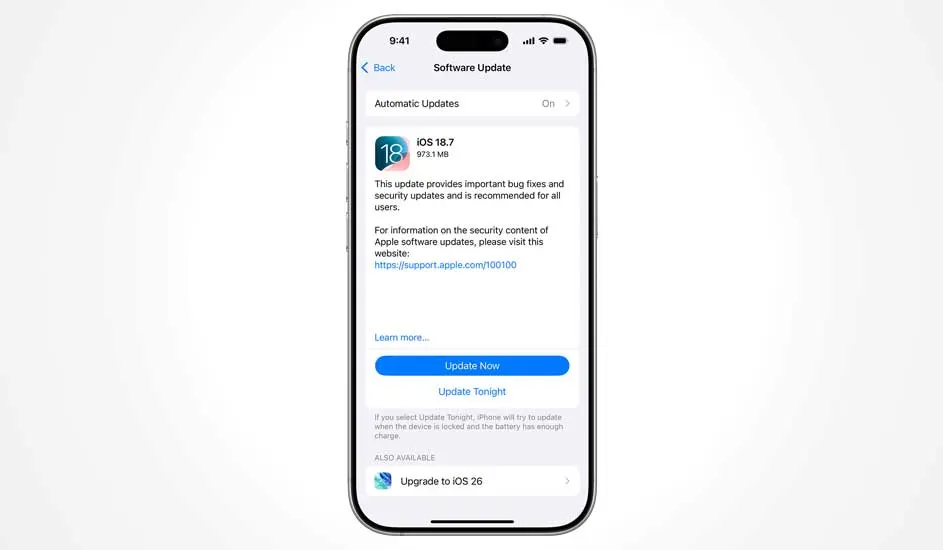
An iPhone displays the iOS 18.7 update page, offering options to install immediately or schedule the software upgrade for tonight.

Step 1: check your iOS version and switch on Bluetooth and Wi‑Fi

  1. Open Settings on your iPhone.
  2. Go to ‘General’ -> ‘About’ and check whether your iPhone is running a recent iOS version that supports your Apple Watch.
  3. If necessary, update your iPhone via ‘Software update’.
  4. Then go back to Settings and switch on Bluetooth.
  5. Check that you are connected to Wi-Fi.

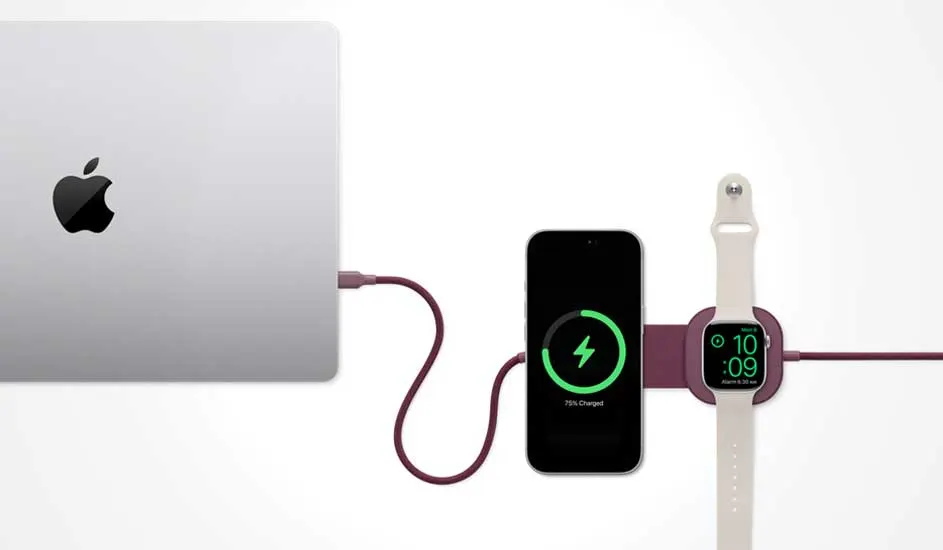
A MacBook links to a charging pad where an iPhone and an Apple Watch power up together, connected with matching purple cables.

Step 2: make sure your Apple Watch and iPhone are sufficiently charged.

  1. Charge your Apple Watch and iPhone to at least 50%.
  2. Keep both devices on the charger while you complete the pairing steps.

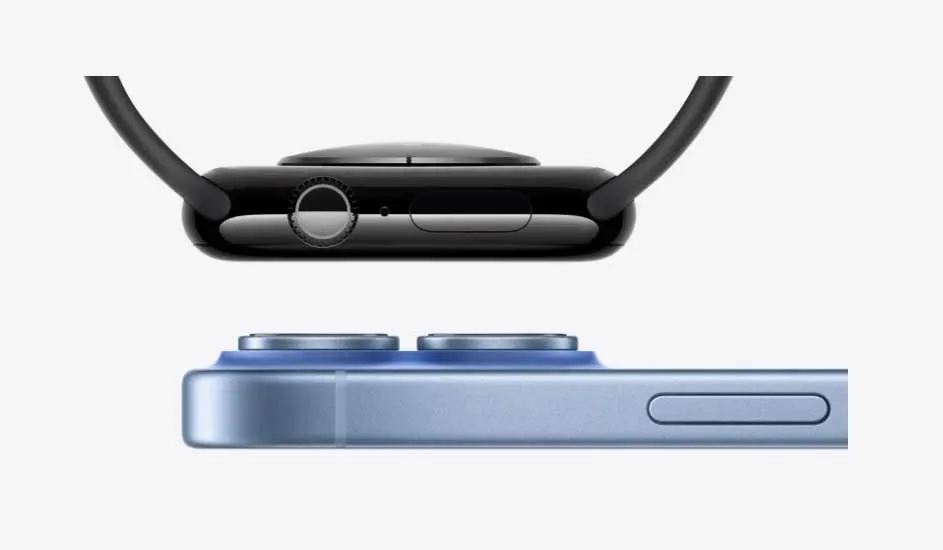
Side view of an AppleWatch with strap above a blue iPhone, highlighting slim designs and slightly raised dual camera lenses.

Step 3: keep your iPhone close to your Apple Watch.

  1. Switch on your new Apple Watch by pressing the side button. Wait until you see the Apple logo.
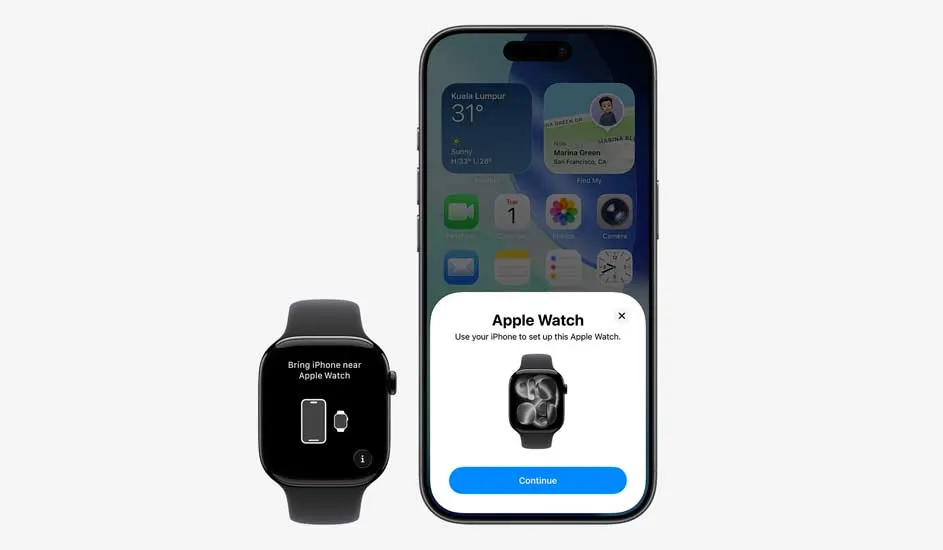
  2. Hold your iPhone close to your Apple Watch until the Apple Watch pairing screen appears on your phone. You can also go directly to the Apple Watch app, which comes pre‑installed on your iPhone. In the app, tap ‘Pair new Watch’.

A black Apple Watch shows a pairing prompt beside an iPhone, whose screen displays a setup window to configure the new watch.

Step 4: connect your Apple Watch to your iPhone.

  1. Tap ‘Continue’ on your iPhone as soon as the pairing notification appears and follow the instructions. Or, if you are using the Watch app, use your iPhone’s camera to scan the animation that appears on your Apple Watch.
  2. Wait until your iPhone confirms that your Apple Watch has been successfully paired.

Step 5: set up your Apple Watch.

Is this your first Apple Watch? Then tap ‘Set up Apple Watch’ and follow the instructions on your iPhone and Apple Watch to complete the configuration.

Have you already set up another Apple Watch with your current iPhone? Then follow these steps:

  1. A screen will appear saying ‘Make this your new Apple Watch’.
  2. Tap ‘Apps & Data’ and the settings to see how your new Apple Watch will be configured using Express Settings.
  3. Tap ‘Continue’ and then tap ‘Customise settings’ if you want to choose how to configure your Apple Watch.
  4. Choose a backup of your previous Apple Watch (your iPhone automatically creates a backup when you unpair the watch from your iPhone). You can also tap ‘Set up as new Apple Watch’ if you want to completely customise the settings on your new device.
  5. Sign in with your Apple ID if prompted.

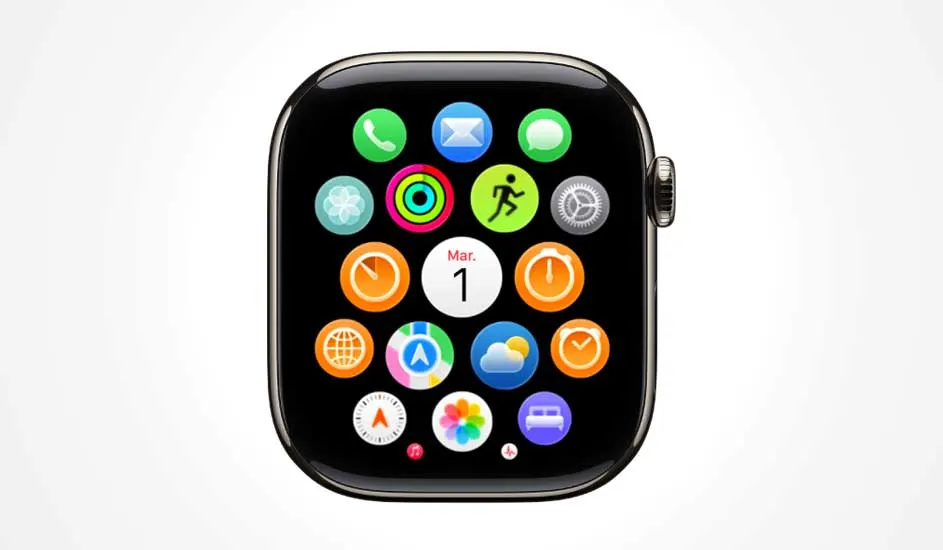
Close-up of an Apple Watch display showing colourful circular app icons arranged around a central white date circle reading “Mar. 1”.

Step 6: install the apps on your Apple Watch

  1. You’re now ready to add your favourite Apple Watch apps. You can do this straight away by tapping ‘Install all’ when you’re asked to install available apps.
  2. If you tap ‘Choose later’, you can decide which apps to put on your Apple Watch at another time. Default apps, such as Mail and iMessage, are already installed on the watch.
  3. Afterwards, check on your Apple Watch that the most important apps (such as Messages, Phone, Wallet, Health) are clearly visible and working properly.

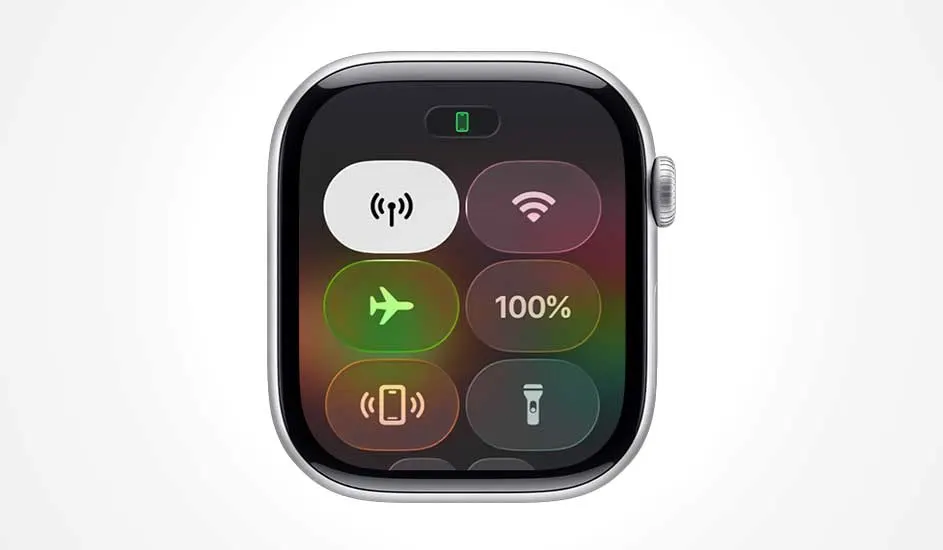
Apple Watch shows the Control Centre with toggles for mobile data, Wi‑Fi, aeroplane mode, full battery, pinging iPhone and torch.

Step 7: link your mobile network to your Apple smartwatch.

This final step only applies if your Apple Watch supports a mobile network.

  1. On your iPhone, open the Watch app and go to the ‘My Watch’ tab.
  2. Tap ‘Mobile data’ or ‘Mobile network’.
  3. Tap ‘Set up mobile service’.
  4. Follow your provider’s instructions to configure your current mobile plan or choose ‘Add a new plan’.
  5. After activation, test the connection by moving your iPhone out of range or switching it to flight mode, and check whether you can still make calls or send messages with your Apple Watch.

How do you pair an Apple Watch with 2 iPhones?

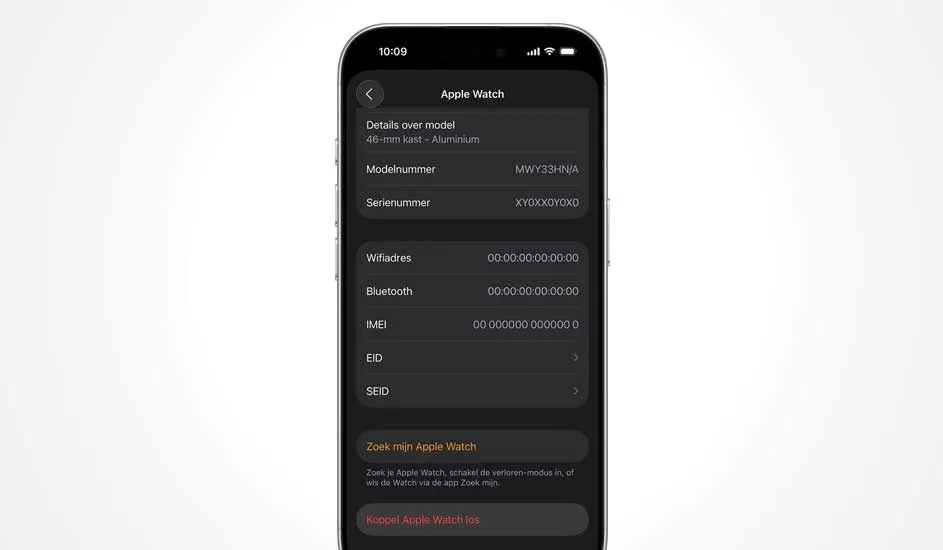
An iPhone shows a dark Apple Watch settings screen with model, serial, network details and options for Find My Watch and unpairing.

An Apple Watch can currently only be paired with one iPhone at a time. However, you can switch between multiple iPhones. Each time you switch, you’ll need to pair the Watch again via the Watch app on the iPhone you want to use. On the new iPhone, open the Watch app, start the pairing process and set up your Apple Watch again. The previous iPhone will then no longer be actively paired. Apple is working on an update that will allow an Apple Watch to be paired with multiple devices at the same time in the future, but this isn’t yet available.

Pairing your Apple Watch with your iPhone isn’t working: what should you do?

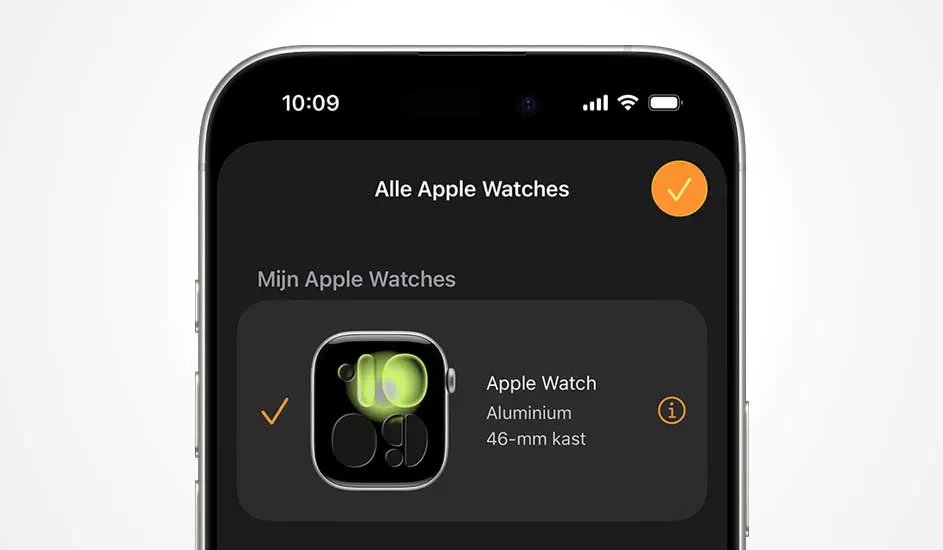
iPhone toont scherm ‘Alle Apple Watches’ met één gekozen aluminium 46‑mm Apple Watch, gemarkeerd met oranje vink en info‑icoon.

If you’re unable to pair your Apple Watch with your iPhone, try the following steps:

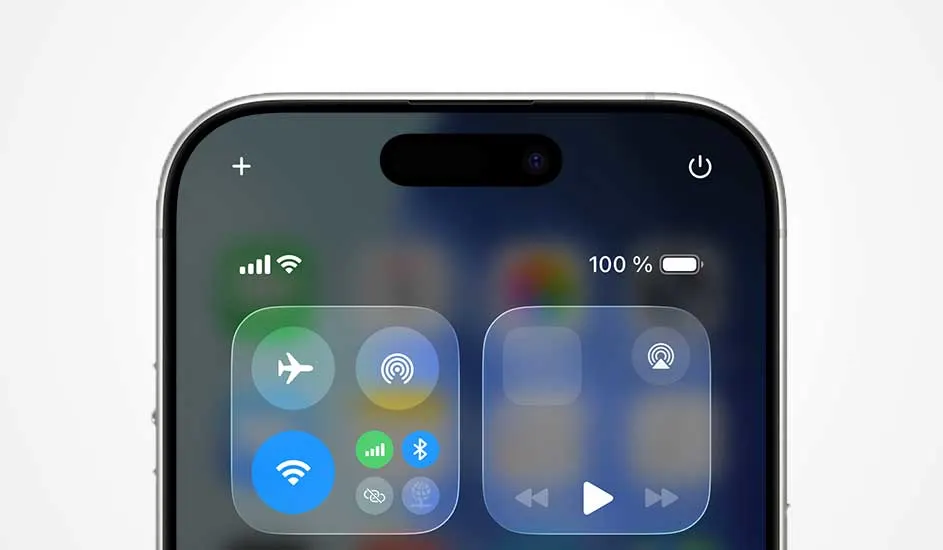
  1. First check that flight mode is switched off and that Wi‑Fi and Bluetooth are enabled.
  2. Restart your iPhone and Apple Watch.
  3. Check again that you’ve installed the latest software update on both devices.
  4. If your Apple Watch is still paired with another iPhone, unpair it. To do this, go to the settings on your Apple Watch and tap ‘General’ -> ‘Reset’ -> ‘Erase all content and settings’.
  5. Don’t have access to settings? Then unpair the Apple Watch from your iPhone via the Watch app. For this: open the app, go to ‘My Watch’ in settings and follow the same steps as above.
  6. Start the pairing process again. You can follow the same steps as in this article or use manual pairing in the Watch app. Select ‘Pair Apple Watch manually’ and follow the instructions.

If these steps still don’t work, you can reset your Apple Watch to factory settings and start again from scratch.

Can you pair an Apple Watch with an Android phone?

The Apple Watch is specifically designed to work with Apple products and therefore does not work with Android devices. For example, if you have a Samsung phone, you’ll find plenty of other smartwatches at MediaMarkt from brands that do work well with Android devices.

Our advice about pairing your iPhone

Top van een iPhone‑scherm met Control Centre‑tegels voor vliegtuigmodus, wifi, bluetooth en een volledig gevulde batterij van honderd procent.

Pairing an Apple Watch with your iPhone is simple. First make sure both devices have a good Wi‑Fi connection and that Bluetooth is switched on. You then pair your Apple Watch wirelessly, either via the Watch app on your iPhone or manually. You can’t pair 2 iPhones with your Apple Watch at the same time, but you can switch between iPhones by pairing your Watch again each time. If pairing doesn’t work, you can usually fix it with a few easy steps, such as restarting and erasing your Apple Watch.

Compare different Apple Watches

FAQ

These articles may also be interesting for you