MM logo white 1
MM logo red
Image description is not available

10 handy Nintendo Switch tips

Luuc ten Velde15 JANUARY 2026
Two people wearing blue jeans play handheld game consoles while sitting indoors on a wooden floor, near a wood table.

Do you finally have a Nintendo Switch and are you looking for ways to make playing Switch games even more fun? Then you need these 10 handy Nintendo Switch tips to enjoy it to the fullest.

1. Saving battery

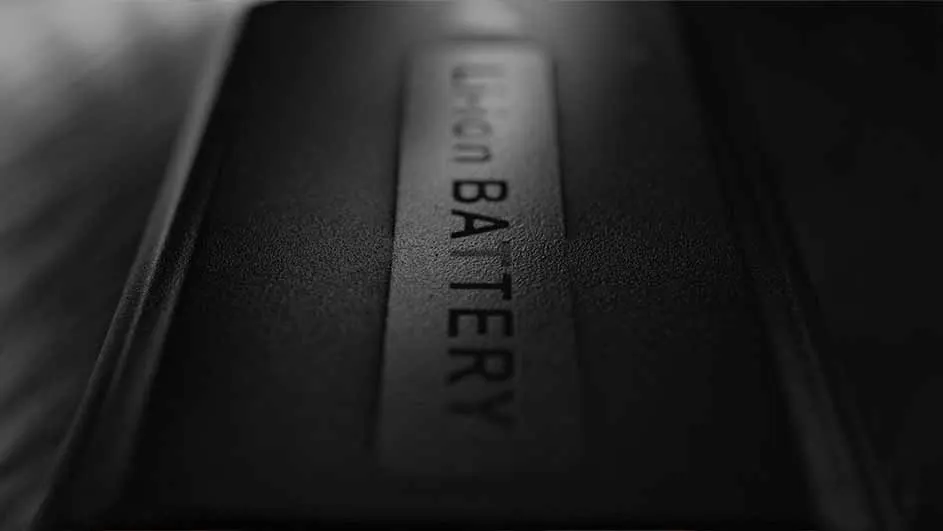
Close-up of a black battery with raised "Li-on BATTERY" lettering, showing texture and depth.

What makes the Nintendo Switch so great is the option to take the console with you as a handheld. But a handheld can run out of power. So, you’ll want to make the battery as energy efficient as possible. Go to ‘System Settings’ -> ‘Sleep Mode’ -> ‘Auto-Sleep’ (Console Screen Off). Normally this is set to 10 minutes but change it to 1 minute or 3 minutes to save battery.

External content - Youtube

We work with YouTube to show you videos with further information about products and services. We need your consent to display the content.

2. Start up your Switch faster

You have to unlock a Nintendo Switch by default if you want to play your games. You do this by pressing the same button 3 times first. You can turn this off so you can start your Switch a bit faster. Go to ‘System Settings’ -> ‘Screen Lock’. There you’ll see one option: on or off. Turn this off and from now on you can start your Switch directly from the main menu.

3. Saving storage space

A person in a pink shirt uses a mobile phone and celebrates with a clenched fist. The background is a blurred interior.

The Nintendo Switch has 32 GB of storage space as standard, or 64 GB of storage space if you have the Switch OLED. That storage space can fill up quickly, but you can save space in a simple way. Go to ‘System Settings’ -> ‘Data Management’ -> ‘Quick Archive’. Nintendo Switch games that you haven’t played for a while will then be removed from the system, but the save data remains. If you later want to download the games again, you can simply continue where you left off.

4. More storage on your Switch

In addition to saving space being a handy way to put more games on your Switch, you can also expand your storage. To do this you need a microSD card, which you can insert into the system at the back of the Switch. There are many different options with all kinds of sizes. We recommend the special SanDisk cards that are made for the Switch.

External content - Youtube

We work with YouTube to show you videos with further information about products and services. We need your consent to display the content.

5. Turn on your TV with the Switch

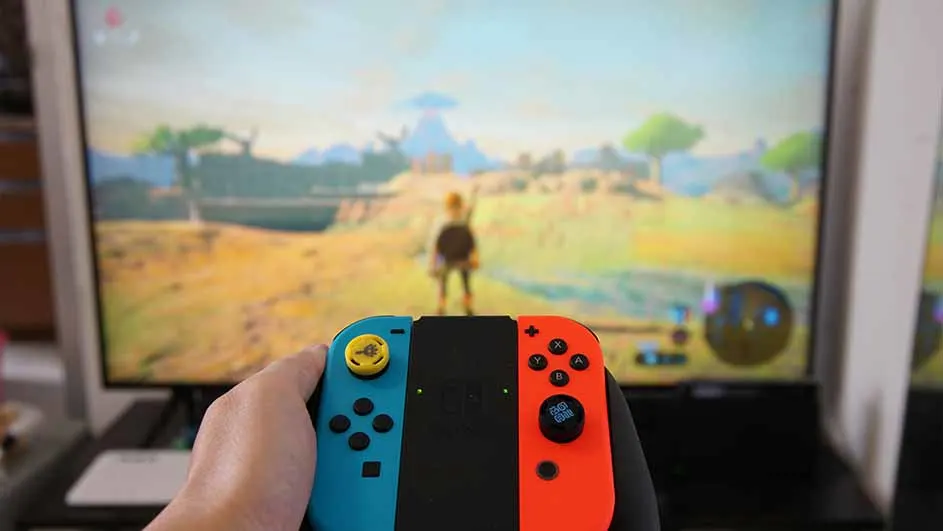
Hand holds a blue and red Nintendo Switch controller. A TV displays a landscape with a character in the background.

The Nintendo Switch is ideal to take with you in your bag, but gaming on the television is of course also a joy. What’s even better is that you can set up the device so that the television switches on automatically as soon as you start the console. Go to ‘System Settings’ -> ‘TV Settings’ -> ‘Match TV Power State’. If the TV is now turned off and you put your Switch in the dock, the television will automatically turn on. This also applies if you’re playing with the Nintendo Switch Pro Controller, and you use that controller to start up the Switch when it’s already in the dock. And if you turn off the television after a gaming session, the Nintendo console automatically goes into sleep mode.

Connecting Nintendo Switch to your TV

6. More than one save data

The Switch is a great system for the whole family, but games such as The Legend of Zelda: Tears of the Kingdom and Pokémon Scarlet or Violet only allow one save data. You can still create multiple save data though. The Switch links these to user profiles. Create multiple user profiles to make multiple save data. You can create a new profile by navigating to ‘System Settings’ -> ‘Users’ -> ‘Add User’. If you then start a game, the Switch will ask which account you want to play with and separate save data will be created.

7. Play loads of retro games

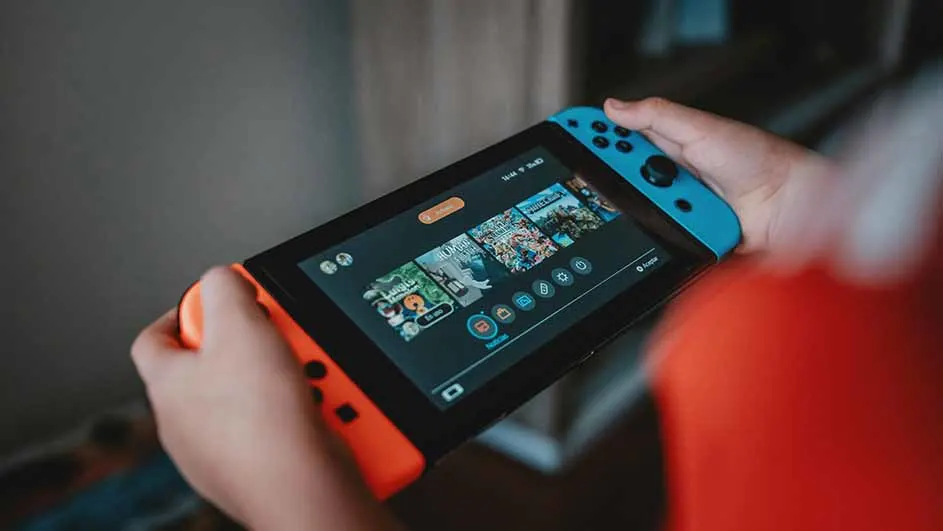
Hands hold a Nintendo Switch with blue and orange controllers; the screen shows a selection of game icons.

In addition to a huge catalogue of Switch games, it’s also possible to play lots of classic Nintendo games on the device. Think of The Legend of Zelda from 1986 or Super Mario World, which once appeared on the Super Nintendo Entertainment System (SNES). With more than 170 games, Nintendo has an enormous library of retro games that can be played via the Switch. To play these you need Nintendo Switch Online. This is Nintendo’s membership that gives players access to that catalogue of retro games, but it also provides the option to play games online with others. With the standard Nintendo Switch Online membership you get access to NES, SNES and Game Boy games, while you can also play Nintendo 64 and Game Boy Advance games if you choose the Nintendo Switch Online + Expansion Pack membership.

8. Change button mapping

Something that is useful for those retro games – but certainly also for other games – is that the Switch offers the option to adjust buttons at system level. You can completely change the button layout, so that the A button always works as the B button, for example, and vice versa. To do that, go to ‘System Settings’ -> ‘Controllers and Sensors’ -> ‘Change Button Mapping’. You can now change the buttons per Nintendo controller, and via an image you can see exactly which button does what. This also applies after you have made the changes. This is ideal if you’re used to the button layout of other consoles that you might also have at home.

9. Temporarily fixing stick drift

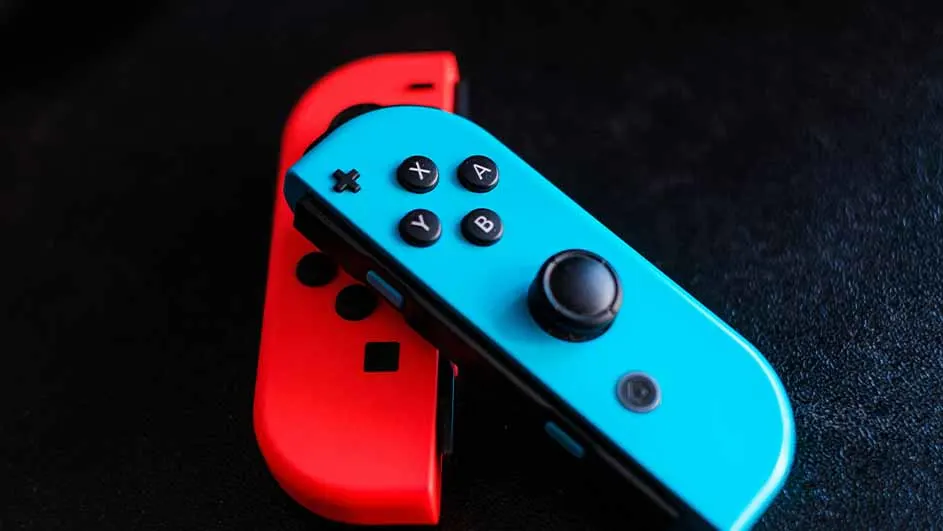
Two Nintendo Switch Joy-Cons, one red and one light blue, are on a black surface. The blue one is on top, angled.

The Joy-Con controllers of the Switch sometimes suffer from stick drift. You can have the problem fixed free of charge by sending the controller to Nintendo for repair, but you can first try to fix the problem yourself. Go to ‘System Settings’ -> ‘Controllers and Sensors’ -> ‘Calibrate Control Sticks’. There you can recalibrate your stick to correct any deviations, although it’s not a permanent solution to remove drift from the stick.

10. See battery percentage

Just as it’s useful on your phone to see what battery percentage you have left, it’s also handy on the Switch when you play in handheld mode. The battery percentage is turned off by default. Fortunately, you can set this up quickly. Go to ‘System Settings’ -> ‘System’ -> ‘Console Battery (%)’. Tick this to activate the function and from now on you’ll always see the current battery percentage in the Switch’s main menu.

Other handy Nintendo Switch 2 tips

  • External content - Youtube

    We work with YouTube to show you videos with further information about products and services. We need your consent to display the content.

1 / 2

Get the best Switch games at MediaMarkt

A couple on a couch play video games; one covers the other's eyes. They hold red and blue controllers, smiling. Pillows behind them.

With these 10 handy Nintendo Switch tips you can enjoy Nintendo’s hybrid console to the fullest. Still looking for a new game? Then it’s worth having a look at the 10 best Nintendo Switch games. There you’ll find lots of top titles that should not be missing from your collection of Switch games.

These articles might be interesting for you