MM logo white 1
MM logo red
Image description is not available

How do you connect a projector to your phone?

Femke10 JUNE 2026
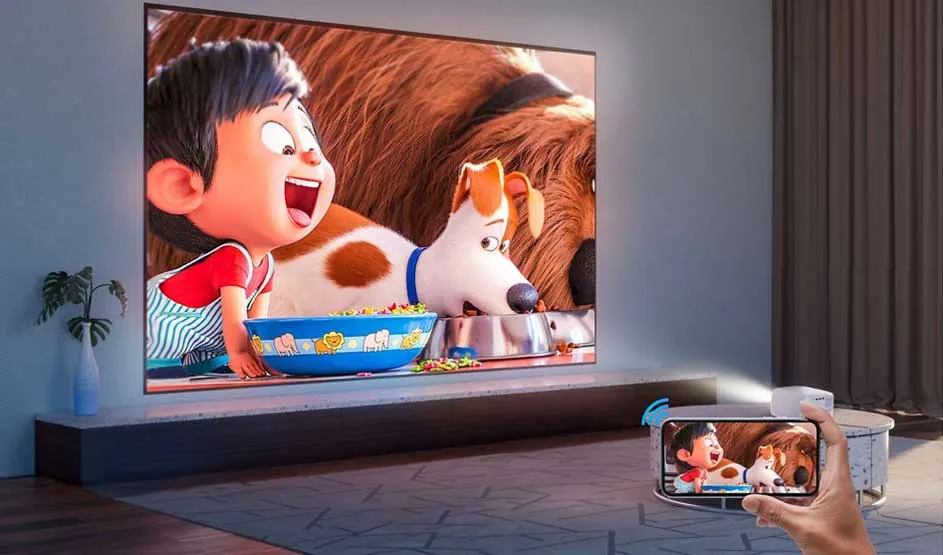
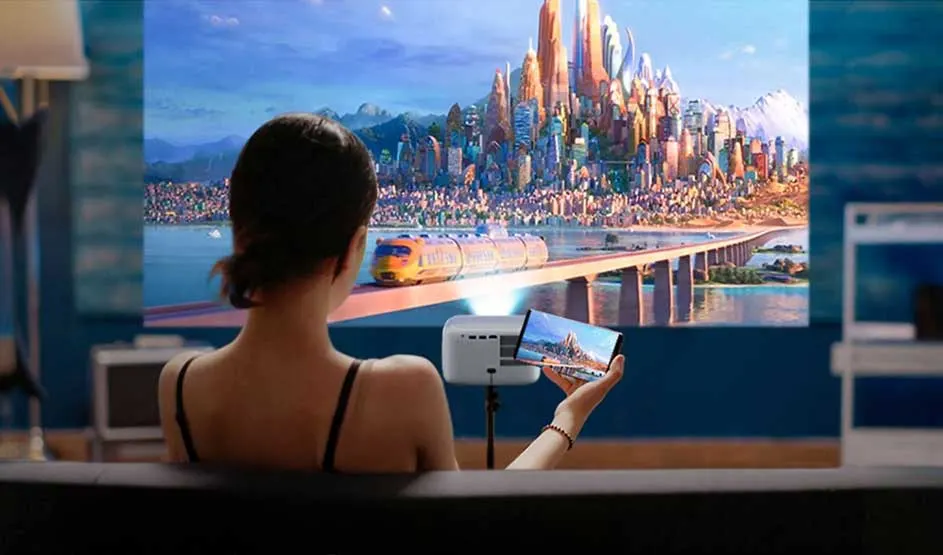
A projector sends an action scene to a large screen, while someone shows the same image on a smartphone with a Wi‑Fi symbol.

With a projector, you can play videos, photos and films on a big screen. You can easily do this through your phone. On this page, you'll find out how to connect an Android phone or iPhone to a projector wirelessly, how to connect a projector and mobile phone through Chromecast or Apple TV, and which cables you'll need for a wired connection.

Watch the World Cup on a projector through your phone

A footballer seems to leap out of the screen and kick a ball forward, in a stadium scene with brightly lit stands.

Do you watch football through an app on your smartphone? Then you can easily watch those matches on a much bigger screen too. Connect your phone to a projector and stream your matches directly from your favourite sports app or streaming service to the projector. That way, you can enjoy every World Cup match with friends and family as if you were sitting in the stadium.

How to create the best World Cup experience
Connecting your phone to your projector at a glance

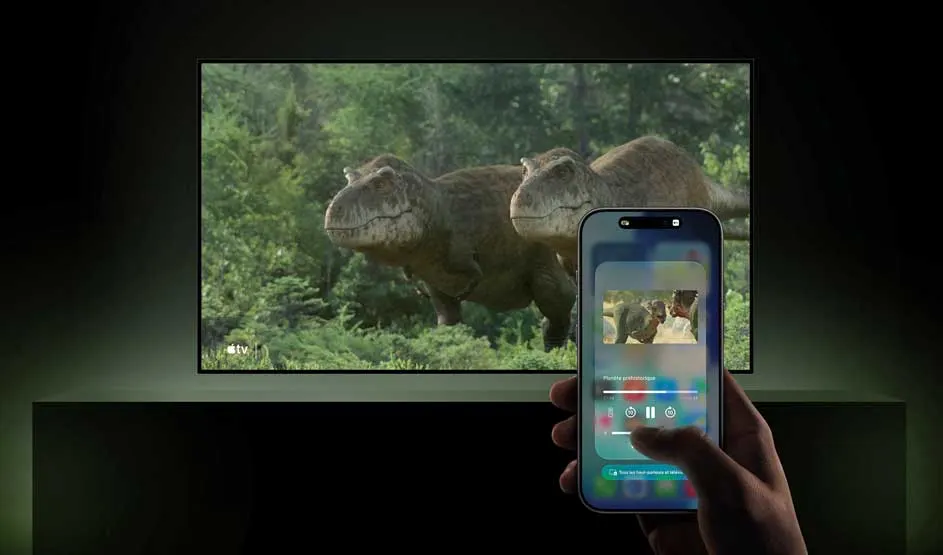
A large screen shows dinosaurs in a forest while someone controls media on a smartphone for synchronisation.

You can easily connect your smartphone to a smart projector either wirelessly or with a cable in different ways:

  • Android smartphones usually connect wirelessly through Smart View, Cast or Miracast.
  • iPhones use AirPlay to connect wirelessly to compatible projectors.
  • Doesn't your projector have built-in support for wireless screen sharing? Then you can use a Google Chromecast or Apple TV.
  • For a wired connection, you'll need a compatible HDMI cable or adapter, and your smartphone must support video output through a cable. Always check which connections and features your phone and projector support.

Connect your projector to your laptop

How do you connect your phone to your projector wirelessly?

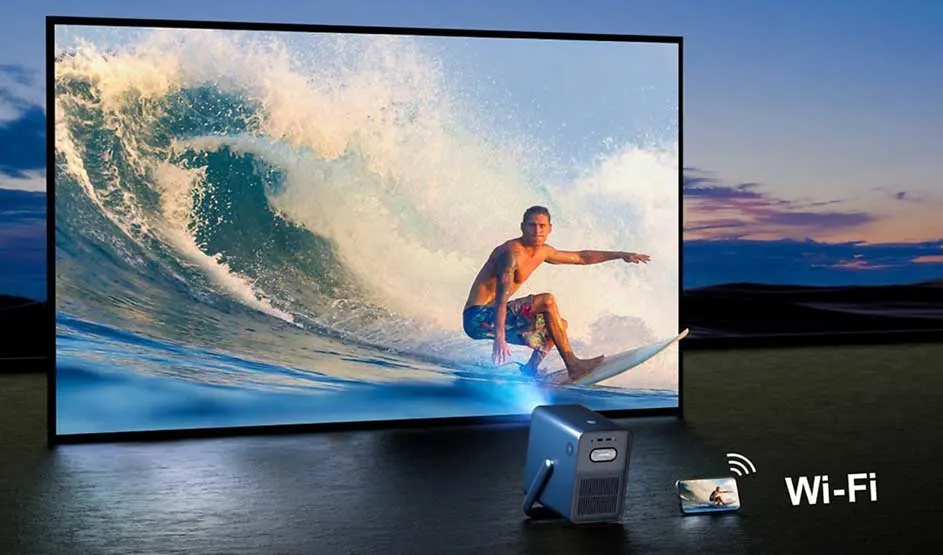
Large TV shows a surfer riding a breaking wave; a projector stands before it. On the right, a phone and Wi-Fi symbol appear.

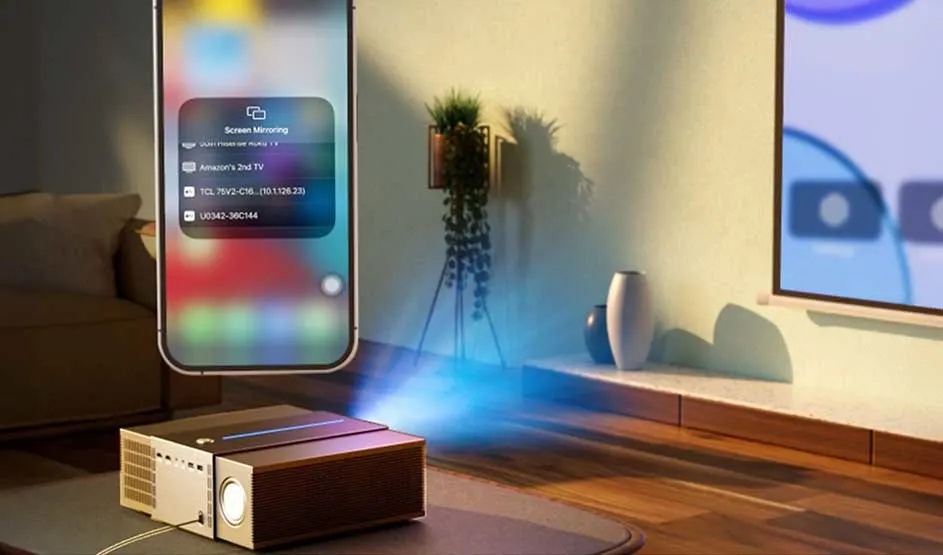
You can connect your phone to your projector wirelessly in different ways to play photos, videos, films or series on a bigger screen. For this, you'll need a projector that supports Wi-Fi and wireless screen sharing, such as Miracast or AirPlay. The available connection options also depend on the connections and features of your smartphone.

A projector casts an image in a modern living room; a large smartphone interface floats above, beside a telly, plant and furniture.

Step-by-step for an Android phone

Do you have an Android phone, such as a Samsung smartphone? Then you can follow these steps to connect it to your projector wirelessly:

  1. Switch on your projector and open the settings for wireless screen sharing. This is often called Screen Mirroring, Miracast or Wireless Display.
  2. Swipe down from the top of your phone screen to open the quick settings.
  3. Then tap Smart View, Cast or Screen Cast. This is often shown as a rectangular icon with a Wi-Fi symbol.
  4. Select your projector from the list of available devices and confirm the connection.
  5. You'll now see your phone screen on the projector.

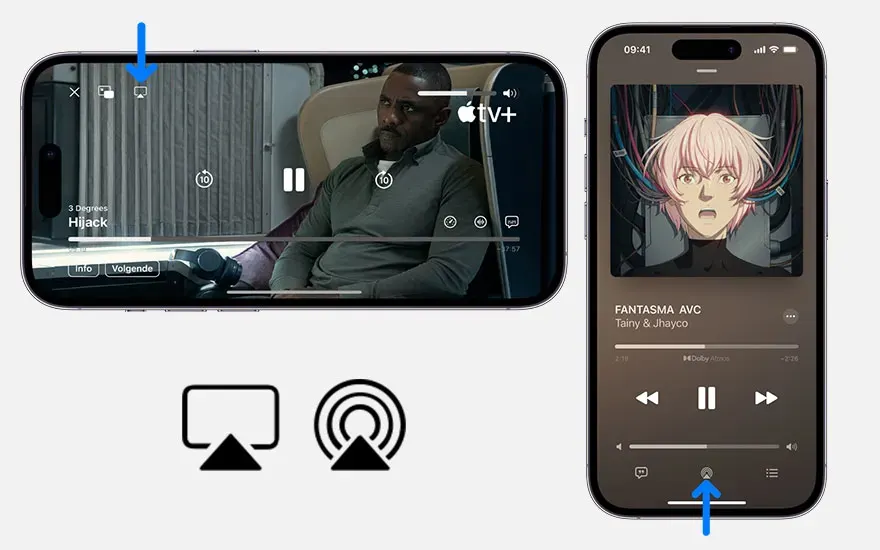
Two smartphones show video and music; below are icons for streaming or screen sharing to a larger display.

Step-by-step for an iPhone

Connecting a projector wirelessly to an iPhone works slightly differently than with an Android phone. Here's how to connect your iPhone to a projector:

  1. Connect your iPhone and the projector to the same Wi-Fi network.
  2. Switch on the projector and activate AirPlay.
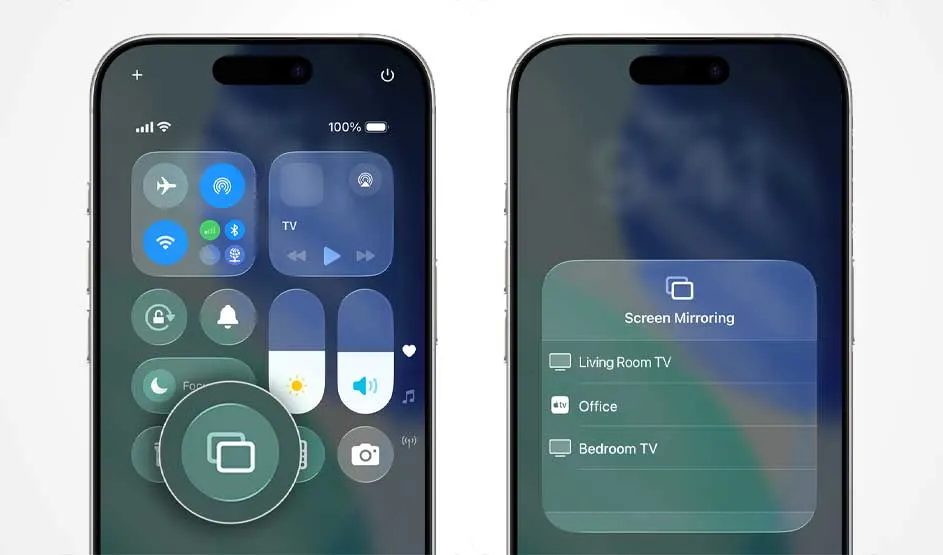
  3. Swipe down from the top-right corner of your iPhone to open Control Centre.
  4. Tap 'Screen Mirroring' and choose your projector from the list.
  5. Your iPhone screen will now appear on the projector.

With Google Chromecast or Apple TV

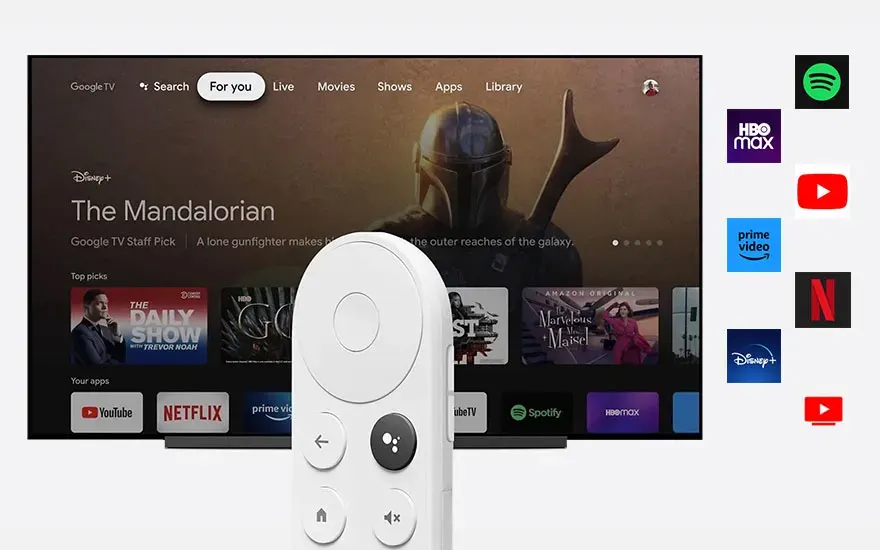
Does your projector not have built-in support for wireless streaming? Then you can also connect a Google Chromecast or Apple TV to the projector. You then stream from your phone to the streaming device, which plays the image through the projector. There are different ways to stream using a Google Chromecast and Apple TV.

A telly shows streaming apps and The Mandalorian; a white remote stands in front, with app logos displayed on the right.

Streaming content with a Chromecast
Only want to play videos, photos or music without sharing your entire screen? Then follow these steps:

  1. Connect the Chromecast to your projector and switch both devices on.
  2. Connect your smartphone and Chromecast to the same Wi-Fi network.
  3. Open an app that supports Chromecast, such as Netflix or YouTube.
  4. Tap the cast icon, which looks like a rectangular screen with a Wi-Fi symbol, and choose your Chromecast.

A large telly shows an animated film; on the right, someone films with a smartphone in a modern room with soft lighting.

Sharing your full screen with a Chromecast
Use this method if you'd like to browse the internet, use apps or game on a big screen:

  1. Make sure the Chromecast is connected to the projector.
  2. Connect your smartphone and Chromecast to the same Wi-Fi network.
  3. Open the Google Home app.
  4. Tap 'Cast screen'.

Two smartphones display screen-mirroring controls, with options to send video to different tellies in separate rooms.

Connecting an iPhone through Apple TV
Does your projector not support AirPlay? Then you can connect an Apple TV to the projector and stream to it from your iPhone:

  1. Connect the Apple TV to the projector and switch both devices on.
  2. Connect your iPhone and Apple TV to the same Wi-Fi network.
  3. Open Control Centre on your iPhone.
  4. Tap 'Screen Mirroring' and choose your Apple TV.
  5. Enter the AirPlay code if needed.

How do you connect your phone to your projector with a cable?

Besides a wireless connection, you can also connect your phone using an HDMI cable. This is especially useful if you'd like a stable signal or if the Wi-Fi isn't working properly. The cable you'll need depends on your smartphone.

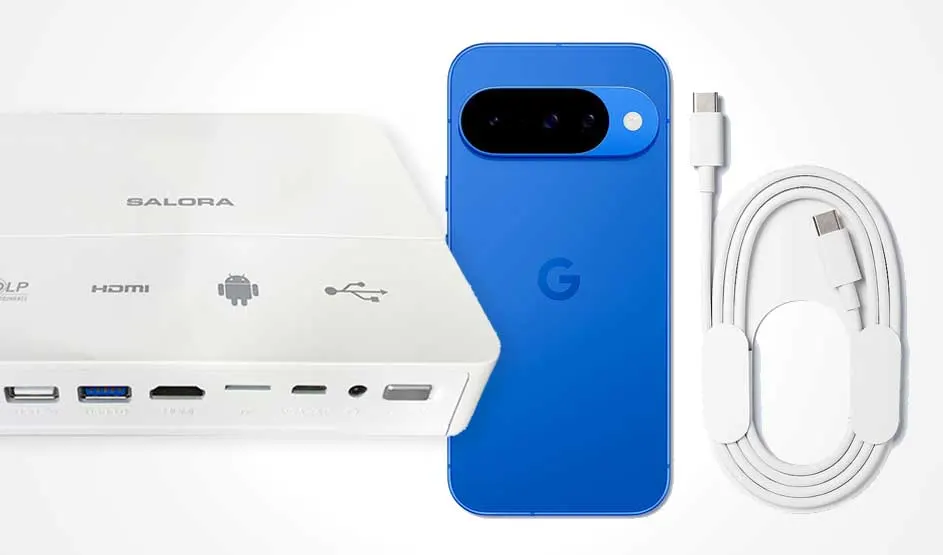
A white device with ports lies beside a blue smartphone and a white cable; it seems meant for display connections.

Android phone
Most Android smartphones have a USB-C port. For this, you'll usually need a USB-C-to-HDMI cable or a USB-C-to-HDMI adapter. Do check first whether your phone supports video output through USB-C, for example via DisplayPort Alt Mode. Here's how to connect an Android phone:

  1. Plug the USB-C cable or adapter into your phone.
  2. Connect the other end to a free HDMI port on your projector.
  3. Switch on the projector and choose the correct HDMI input.

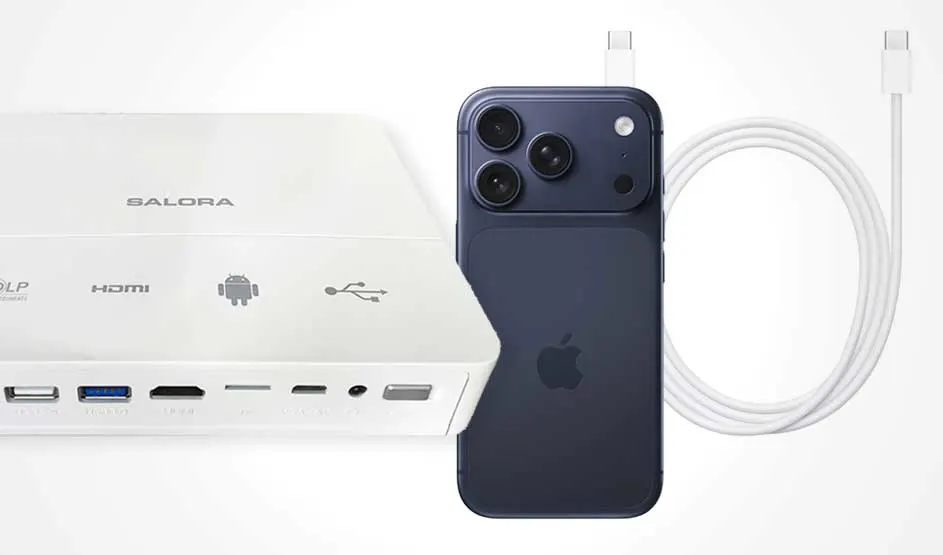
A white device with ports lies beside a dark iPhone and a white cable; together they seem ready for screen connection.

iPhone
With an iPhone, the right cable depends on the model. Newer iPhones, such as iPhone 15 and later, use USB-C and work with a USB-C-to-HDMI cable or adapter. Older models still have a Lightning connection and need a Lightning-to-HDMI adapter together with an HDMI cable. Here's how to connect an iPhone:

  1. Plug the correct cable or adapter into your iPhone.
  2. Connect the cable to a free HDMI port on your projector.
  3. Switch on the projector and select the correct HDMI input.

Our advice on connecting your projector to your smartphone at MediaMarkt

A woman watches a large screen showing a futuristic city; the same scene appears on a smartphone in her hand.

You can connect your phone to your projector wirelessly, with a cable or through a streaming stick. That way, you can watch all your content on a big screen wherever you are. If your projector supports Wi-Fi and screen mirroring features such as Miracast and AirPlay, you can connect your phone wirelessly with ease. If your projector doesn't support that, you can choose a Chromecast or Apple TV instead. Finally, you can also connect your phone with a cable. Just make sure you're using the right connection for both your phone and your projector.

Should you choose a projector or a TV?

FAQ

These articles may also be interesting for you