MM logo white 1
MM logo red
Image description is not available

How do you connect a soundbar to your TV for the best sound quality?

Femke24 NOVEMBER 2025
A gray soundbar sits on a white surface below a black television mounted on a gray textured wall.

A soundbar makes the sound from your TV much more powerful. It pulls you even deeper into your favourite series and makes action scenes feel more intense. You place a soundbar in front of your TV or mount it underneath or above it. But how do you then connect a soundbar to your television? In this article you’ll discover which options you have and how to connect a soundbar to your TV step by step.

The best option: connect your soundbar with an HDMI cable

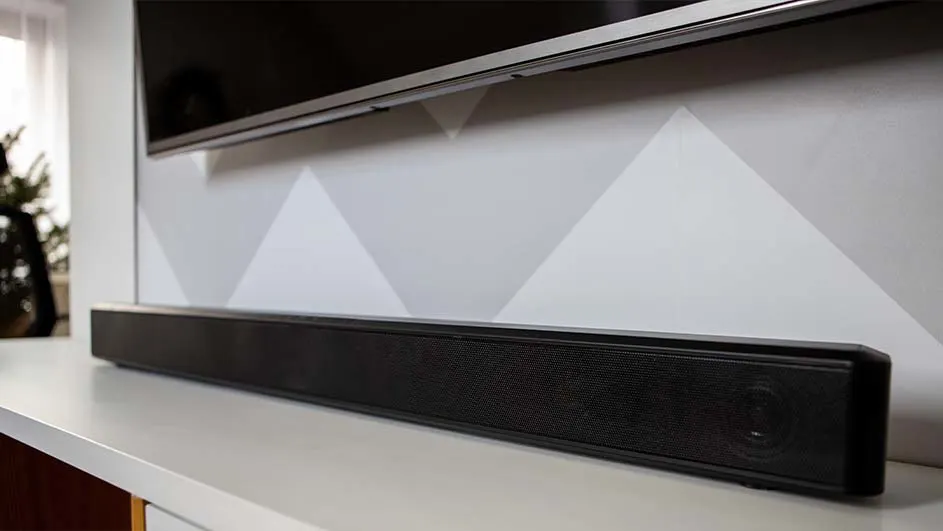
A black soundbar sits on a white shelf under a wall-mounted TV. The wall has white and grey geometric patterns. A black vase is to the left.

For the best sound quality, connect your soundbar with an HDMI cable. These cables offer the best bandwidth for audio, which means the sound blasts loud and clear from your soundbar. It’s important that your TV has the right HDMI port. Check the inputs on your television. Does one of the ports say “ARC”? Then your TV is suitable for an HDMI 2.0b cable. If one of the ports on your TV is labelled “eARC”, connect your soundbar to your TV with an HDMI 2.1 cable. Plug the correct end of the HDMI cable into the port on your soundbar labelled “HDMI OUT”.

Which soundbar suits you best?
Connecting your soundbar via HDMI in 6 steps

A black soundbar sits on a white surface near a potted plant. Behind it is a TV and a wooden panel.
  1. Place the soundbar in front of, or mount it under/above, your television.
  2. Plug the HDMI cable into the TV port labelled “ARC” or “eARC”.
  3. Plug the other end of the HDMI cable into the HDMI OUT port on your soundbar.
  4. Switch on your soundbar and your TV.
  5. Set your soundbar to HDMI. You do this by pressing the button labelled “Source” or “Input”.
  6. Set the TV sound to play through the soundbar. On most TVs you do this via the option “Output device” or “Sound output”, which you can find in the TV’s sound settings.

View all soundbars

Another way to connect your soundbar to your TV is with an optical cable. This is the best option if you don’t have a suitable HDMI cable or if your television doesn’t have an HDMI port. You can recognise an optical cable by the hexagonal shape of the connector, which is protected by a small plastic flap. Plug the optical cable into the TV port labelled “DIGITAL AUDIO OUT”. Plug the other end of the cable into the optical port on the soundbar.

How to connect a soundbar with an optical cable

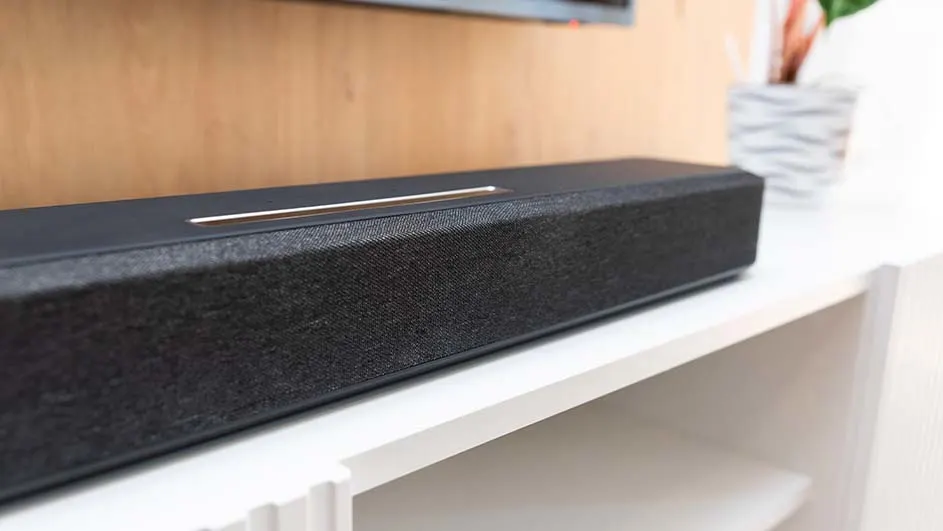
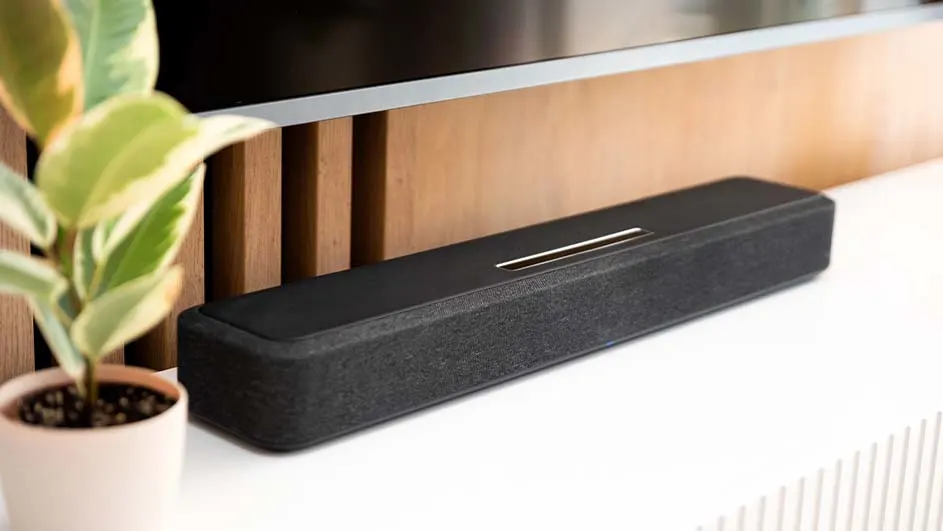
A black soundbar with a silver line sits on a white shelf against a light brown wall. A plant is partially visible.
  1. Place the soundbar where you want to position or mount it.
  2. Plug the optical cable into the TV port labelled “DIGITAL AUDIO OUT”.
  3. Plug the other end of the optical cable into the optical port on your soundbar.
  4. Switch on your soundbar and your TV.
  5. Press the source button on your soundbar and set it to optical. This is labelled “D-in”, “Optical” or “Digital”.
  6. Go to the option “Output device” or “Sound output” in your TV’s sound settings. Set the TV sound to play through the soundbar via the optical input.

Wireless connections: Bluetooth and Wi-Fi

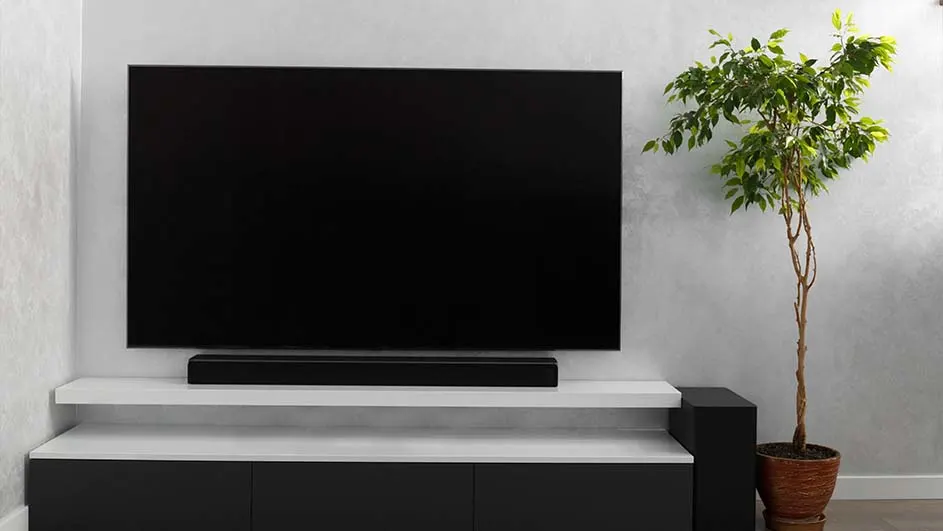
A black TV is mounted above a white and black cabinet, next to a potted plant.

More and more soundbars can also be connected wirelessly to your TV. You will need a smart TV for this. There are 2 wireless options for connecting your soundbar: Bluetooth and Wi-Fi. Connecting via Bluetooth is the quickest and easiest way to connect your soundbar wirelessly. However, the sound quality of a wireless connection is often better if you connect the soundbar via Wi-Fi. In addition, your soundbar can become part of a larger multi-room ecosystem when connected via Wi-Fi. This makes it easy to control your soundbar and other speakers in your home via a single handy app.

View the best soundbars

How to connect a soundbar via Bluetooth

  1. Place the soundbar in front of, under or above the TV. Ideally, position it as close to your television as possible.
  2. Switch on Bluetooth on your soundbar by pressing the Bluetooth button. Hold it down until the soundbar enters pairing mode. You’ll hear a tone.
  3. Go to the “Sound output” option in the TV settings and navigate to the list of Bluetooth speakers.
  4. Select the soundbar, which should appear in the list, and select “Connect”.

How to connect a soundbar via Wi-Fi

  1. Place the soundbar in front of, under or above the TV.
  2. Set the soundbar to Wi-Fi mode using the source button.
  3. Make sure your TV and smartphone are connected to the same Wi-Fi network.
  4. Download the app that matches your soundbar brand. For Samsung soundbars, for example, this is the Samsung SmartThings app.
  5. Add your soundbar in the app for your device and follow the on-screen instructions.
  6. In the “Sound output” option in your TV’s sound settings, set the sound to play via the soundbar.

These articles might be interesting for you