
MM logo white 1
MM logo red
Image description is not available

How do you reset your Apple AirPods?

Femke3 NOVEMBER 2025
Two white wireless earbud charging cases are displayed, each with a blue indicator light and a metallic hinge.

Are your AirPods not working as they should, for example connecting poorly or not charging properly? You can fix many issues with your Apple earbuds simply by resetting them. Even if your AirPods crackle or one earbud stops working, a reset can often do the trick. In this article, we’ll show you how to fully reset your AirPods 1, 2, 3 & 4 and AirPods Pro 1, 2 & 3 in just a few steps and within minutes.

When do you need to reset your AirPods?

A woman with an earbud holds a phone near a reflective wall, with a green field in the background.

Resetting your AirPods may be necessary when they’re not functioning properly. A reset often helps in the following situations:

  • Charging issues: your AirPods no longer charge fully, or the case doesn’t recognise the AirPods.
  • Connectivity issues: the AirPods won’t connect to your devices, or the connection keeps dropping.
  • Sound or microphone problems: the audio stutters, crackles, or the microphone doesn’t work properly.
  • Error messages or freezing: the device doesn’t recognise the AirPods, or they don’t respond to taps and touch controls.
  • General malfunction: your AirPods have stopped working and previous fixes like re-pairing haven’t helped.

A reset returns your AirPods to factory settings, which often resolves these problems and lets you start again with a clean connection.
Step-by-step guide to resetting AirPods and AirPods Pro

Resetting your AirPods is simple. With a few quick steps, they’ll be ready to use again.

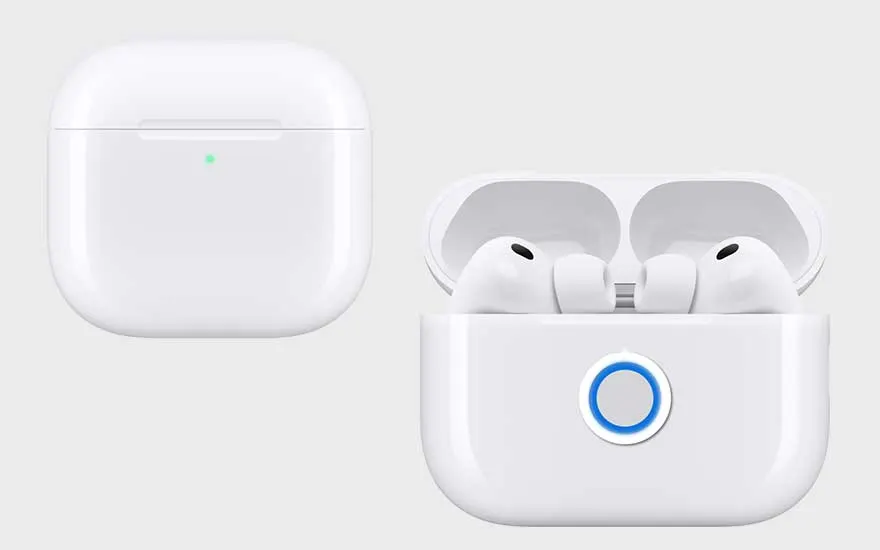
A set of white wireless earbuds in an open and closed charging case, both cases shown side by side against a white background.

How do you reset AirPods 1, 2 or 3, or AirPods Pro 1 or 2?

Resetting your AirPods 1, 2, 3 or AirPods Pro 1 or 2 is easy in 5 steps:

  1. Place your AirPods in the charging case, close the lid and wait 30 seconds.
  2. On the iPhone or iPad paired with your AirPods, go to Settings and to Bluetooth:
    • If your AirPods appear under ‘My Devices’, tap the ‘More info’ icon next to them, choose ‘Forget This Device’ and confirm.
    • If they don’t appear, proceed to the next step.
  3. Open the lid of the charging case.
  4. Press and hold the small button on the back of the case for about 15 seconds.
  5. Watch the status light on the front of the case: it will flash amber, then white. Then follow the on-screen instructions on your device to pair your AirPods again.

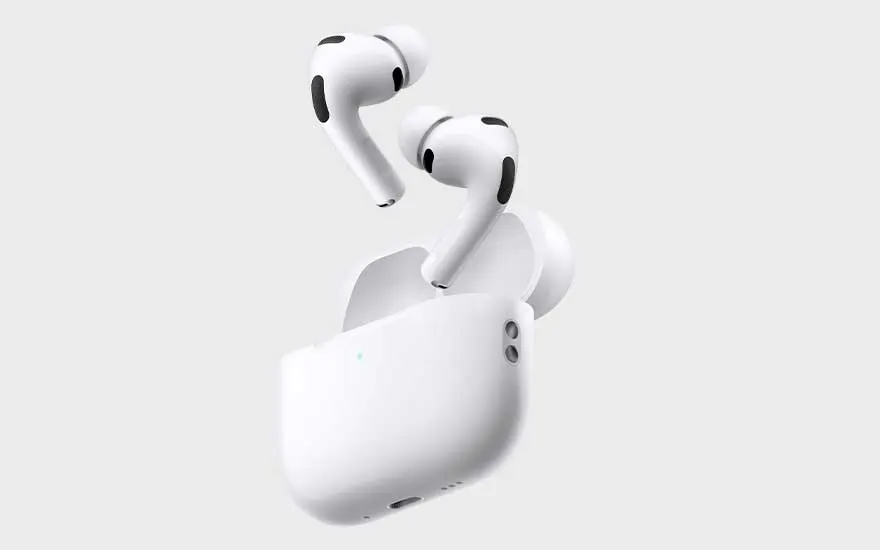
Two wireless earbuds are floating just above their open white charging case. The design is modern and minimalistic.

How do you reset AirPods 4 or AirPods Pro 3?

Resetting your AirPods 4 or AirPods Pro 3 is slightly different from other models, but it’s still quick and easy:

  1. Place your AirPods in the charging case, close the lid and wait 30 seconds.
  2. On your iPhone or iPad (paired with your AirPods), go to Settings and to Bluetooth:
    • If your AirPods appear under ‘My Devices’: tap ‘More info’ next to your AirPods, choose ‘Forget This Device’ and confirm.
    • If they don’t appear, go straight to the next step.
  3. Open the lid of the charging case.
  4. Double‑tap the front of the case while the status light is on.
  5. Double‑tap again as soon as the light starts flashing white.
  6. Double‑tap a third time when the light starts flashing faster.
  7. Wait until the light flashes amber and then turns white. Then follow the on‑screen instructions on your device to pair your AirPods again.

How can you reset AirPods without your phone?

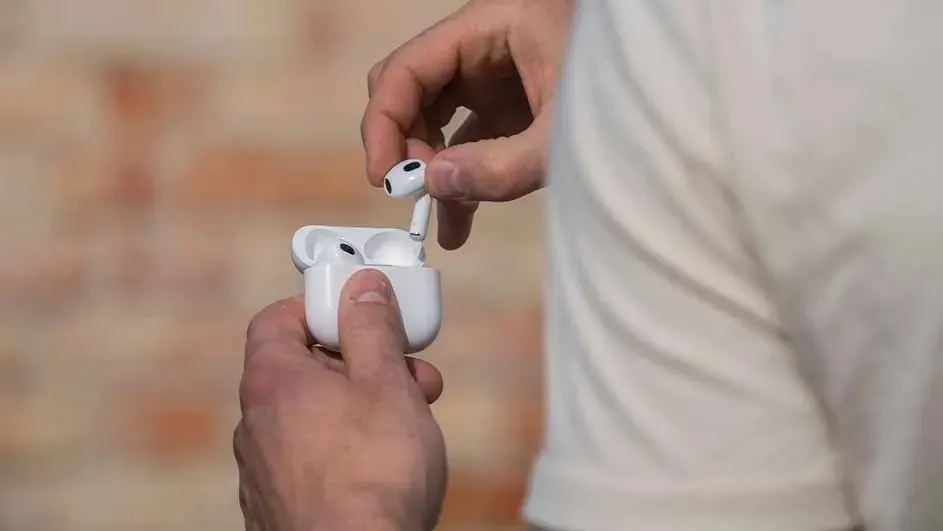
Someone is taking a wireless earbud out of its white charging case, with hands clearly visible in the foreground of the photo.

Don’t have your phone to hand? Follow these 5 steps to restore your AirPods to factory settings:

  1. Place the AirPods in the charging case and close it.
  2. Wait 30 seconds before opening the case, so the AirPods can fully power down.
  3. With the case open, press and hold the button on the back of the case for 10 seconds.
  4. Watch the light on the front: it will flash red first and then white. This indicates the reset is complete.
  5. Pair the AirPods with another device once the light stays white. Your AirPods are now fully restored to factory settings.

What if you lose your AirPods?

What should you do if resetting your AirPods doesn’t work?

A man is working on his laptop on a train, wearing wireless earbuds. Through the window, a motorway and buildings are visible.

If you can’t reset your AirPods using the standard steps, try the following:

  • Let the earbuds run completely flat by not placing them back in the case. Then charge them back up to 100%.
  • Clean your AirPods thoroughly. Use a microfibre cloth for the exterior and a cotton bud for hard‑to‑reach spots. You can gently remove stubborn marks with a rubber, and a dry toothbrush helps with small openings and grilles.

If these steps still don’t work, or a reset doesn’t solve your issue, there may be something else going on. Bring your AirPods to your nearest MediaMarkt and we’ll be happy to help.

Our advice on resetting your AirPods

Two people are sitting outside a café, enjoying coffee and laughing together. A blue door in the background creates a cosy vibe.

A reset will quickly sort out most AirPods issues. Whether they’re charging poorly, not connecting, or one earbud is stuttering, a few simple steps will have your AirPods ready to use again. Don’t have a phone or iPad to hand? Resetting is still an option.

Compare all AirPods

Frequently asked questions

View similar articles