MM logo white 1
MM logo red
Image description is not available

How to connect your TV and make sure it’s properly installed

Femke21 OCTOBER 2025
Two workers in blue overalls are installing a large, flat screen TV on a wooden entertainment center with a built-in fireplace.

Have you just bought a new TV and want to install it correctly? Or is your current TV having picture or sound issues? On this page, you’ll find handy tips and tricks for installing your (smart) TV, connecting other devices and calibrating your TV.

The best way to mount your new TV

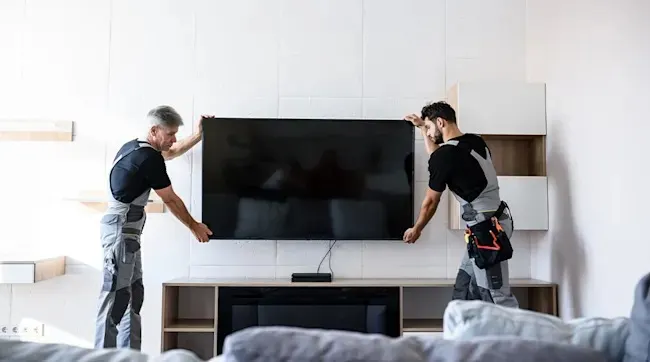
Two workers in gray overalls mount a flat-screen TV on a white wall above a wooden cabinet with shelves.

The best and most convenient way to mount your television on the wall is with a good TV bracket. This saves a lot of space and turns your TV into a kind of fancy wall artwork. There are fixed, tilting and swivelling brackets to mount your television. On our TV bracket advice page, you can read which type of bracket is most suitable for you and how to mount it properly on the wall. For maximum comfort, it’s important to mount your television at the right height. All flat TVs can be wall mounted. Choose a TV that suits you.

View all televisions
Connecting your TV via cable

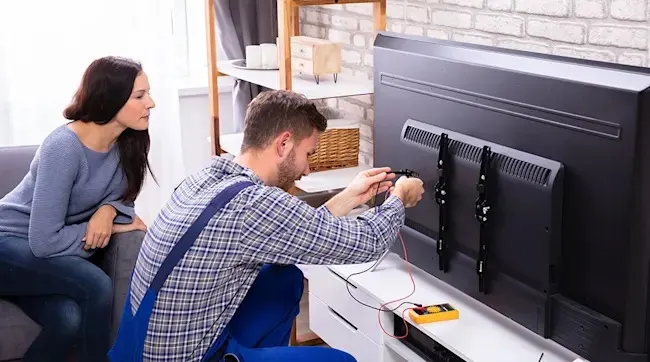
A technician connects wires to a mounted television, using a yellow multimeter on a white cabinet. A woman watches from a gray couch.

If you want to connect a television via cable, follow a few steps. First, connect a coaxial cable to the wall socket, which is usually behind a wall plate. Then connect the other end of the cable to the television. There’s often a specific antenna input available that the coaxial cable fits exactly. After the cable is connected at both ends, turn on the television and search for channels. If everything has gone well, you’ll see the available stations.

Connecting your TV via the telephone network

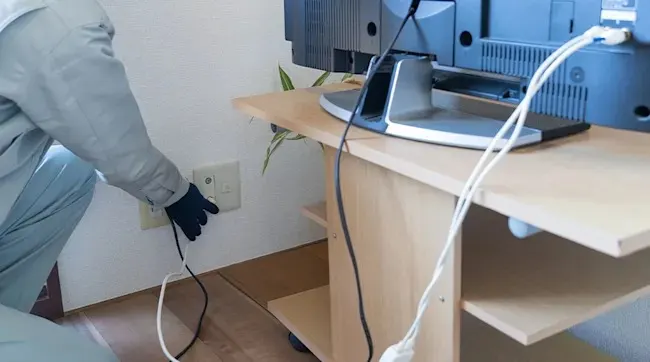
A person wearing gloves is switching off a wall switch next to a light wood table supporting a television with white and black cables.

Are you connecting your TV via the telephone network? Find the ISRA point in your meter cupboard. This is the junction where a thick and a thin telephone cable come out. If you have ISRA-1, cut the thin cable. Connect the red and blue wires you now see to the connection box, which you then plug into the supplied RJ11 connector. If you have ISRA-2, you can plug the RJ11 connector directly into the second contact point of the ISRA. Then connect the modem to the cable and the receiver with the supplied cables. Insert an HDMI cable into the receiver and connect it to your television.

Connecting your TV to a games console, Blu-ray player or other device

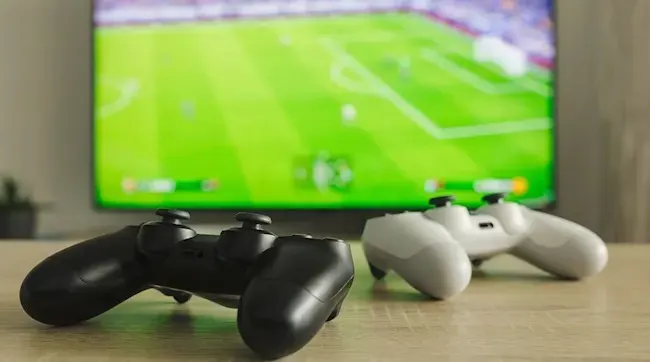
Two game controllers, black and white, sit on a wooden surface in front of a TV screen showing a soccer game.

Games consoles – such as a PlayStation or Xbox – and Blu-ray players are connected to your television via an HDMI cable. This cable, which is almost always included, has 2 ends: HDMI OUT and HDMI IN. Plug one end into the back of the console, and the other into the TV’s HDMI port. If you also plug the power cable into the mains and switch on the console, it will often start up automatically. If not, you probably need to switch your TV to the correct source channel. Do this via the source button on your remote control.

Installing your smart TV

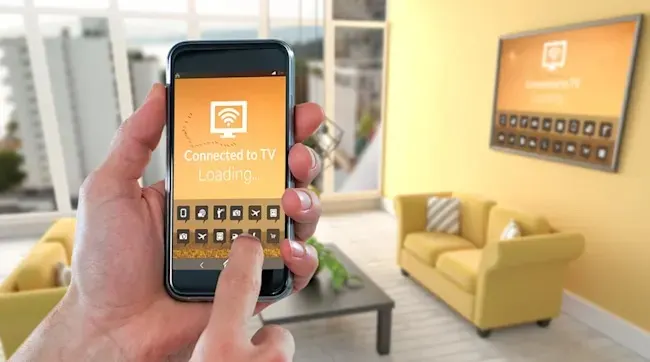
Hand holding a phone showing "Connected to TV, Loading..." with a keyboard, in a yellow room with sofas and a TV on the wall.

Installing a smart TV is straightforward and doesn’t take much time. Once you connect the television to the power cable, the setup will almost start by itself. It’s important to connect the TV to the internet so you can access all functions and apps. This can be done via Wi‑Fi or an Ethernet cable. Do you have a regular television you want to make smart? Use a Chromecast. Connect this device to your TV using the supplied HDMI adapter. Use the Google Home app on your smartphone or tablet to connect to the Chromecast. This way, you can stream the latest Netflix Original, browse YouTube or play your favourite Spotify playlist on your regular TV.

View all smart TVs

Calibrating your TV: what is it and when is it needed?

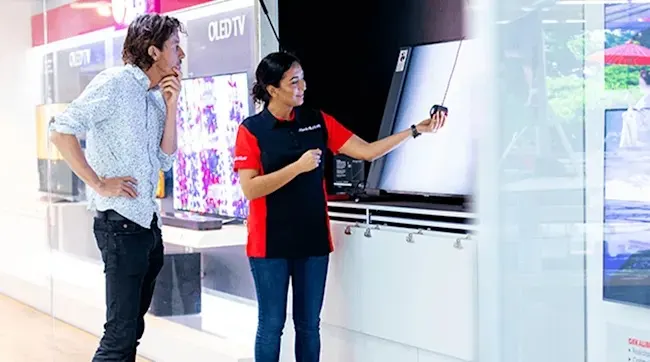
A man and a salesperson stand in front of a display of OLED TVs in a store. The salesperson points to a TV screen.

Calibrating a television means adjusting the picture settings for the best possible viewing experience. This is necessary because manufacturers ship TVs with default settings that don’t always match your preferences and viewing environment. For instance, the contrast may be too high or too low, colours may not look natural, or the brightness may not be suited to the light conditions. At MediaMarkt, you can have your television calibrated by professionals who know what to look for and which adjustments are needed for the best picture quality.

Get your TV calibrated at MediaMarkt

Unable to connect your TV?

A person sits on a sofa, holding a phone and facing a large, flat-screen television mounted on a white wall.

What now? Have you been trying to connect your TV for a while but can’t quite figure it out? MediaMarkt is happy to help you mount your television neatly, get it ready to use and/or calibrate it. We’re also happy to answer all your pressing questions about connecting your television. So, if you want to know how to connect your smart TV wirelessly, how to pair devices with your TV, or how to perform the latest software updates, you can always turn to MediaMarkt.

More about Always Support from MediaMarkt

View similar articles